How to Extract Attachment & Email Address from MBOX?
Get the power to extract email attachments and email addresses from emails available inside MBOX files. With SysInspire MBOX Attachment Extractor Software, swiftly export attachments from 1 or many MBOX files in a single process without efforts.
Software More Info Download Now Buy Now
Free demo available to extract up to 15 email attachments & addresses from each MBOX file for free.
Step-1) Download SysInspire MBOX Attachment Extractor software on a windows-based PC and press the "Add File/Folder" button

Step-2) Choose a mode of adding MBOX file from available options: -
- Select MBOX file: - import single MBOX files for extracting data from one file.
- Select MBOX Folder: - add a folder holding multiple MBOX files
- Auto Load Thunderbird Profile: - in one click load all mail folders and files from Thunderbird profile.
Add MBOX files with your selected option and press the Next button.

Step-3) Load mail folders from the imported MBOX files and open them to view their inner emails.

Step-4) Click on each email and view each email from MBOX file one by one.

Select needed folder and apply the below given steps for extracting attachment/email address.
Steps to Extract MBOX Email Attachments
Step-5) After the folder selection, press the Extract Attachment button and apply needed settings in the newly opened screen.
- Attachment Extraction
- Filtering Attachment Extension
- Email Filtering
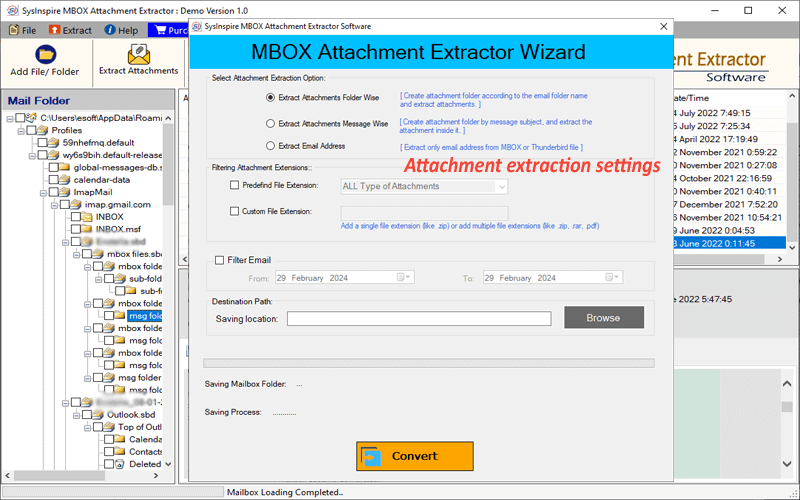
Required Settings for Attachment Extraction: -
- Select Attachment Extraction option: - Extract the attachments and store them in 2 distinct modes.
- Extract Attachment Folder-Wise: - create a folder for each MBOX file and store attachments of all the emails in it.
- Extract Attachment Message-Wise: - create each folder for each email and store their asscoiated attachments.
- Filtering Attachment Extensions: - select or add the file type of attachment to extract them from MBOX file.
- Predefined File Extension: - Choose the type of attachment from the available options.
- Custom File Extension: - manually input the extension of attachments (one or more)
- Filter Email: - Select start and end date of emails from which you want to export attachments
- Saving Location: - simply hit on Browse and select the path where you want to save the resultant attachments.
Step-6) Click on Convert and start Extracting all email attachments from MBOX.
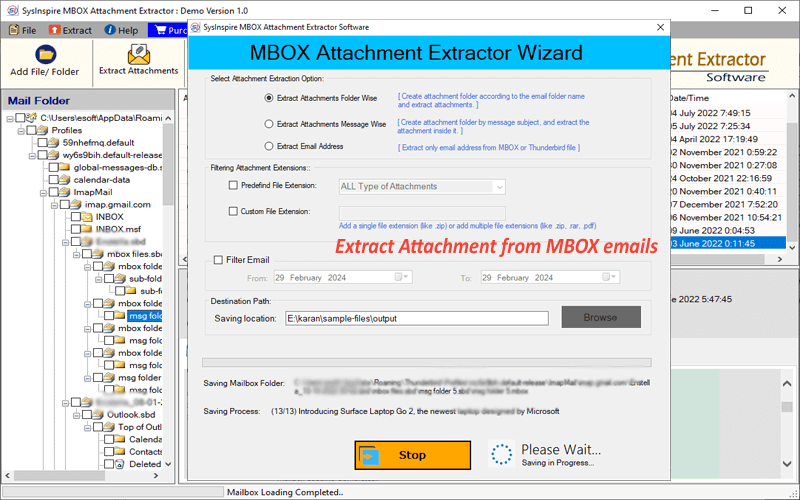
Steps to Extract Email Address from MBOX files
Step-4) Hit the Extract Email Address button from top menu bar and apply needed settings.
- Email Filter Criteria: - Choose an email address field of which you want to extract email address .
- Filter Email: - manually input the extension of attachments (one or more)
- Filter Email: - manually input the extension of attachments (one or more)

Step-4) Hit the Split/Merge button and choose Merge MBOX file option, then click on Next.

If you need any kind of assistance, then please connect with us - Contact US