How to Delete/Remove Emails from Thunderbird Profile?
De-duplicate emails from Thunderbird profile's mail folders that are stored locally on your computer. Take the help of SysInspire Thunderbird Duplicate Remover software and delete email duplicates. De-duplicate within each folder or across all mail folders and get more advanced functions in the software.
Software More Info Download Now Buy Now
Delete duplicates of 25 emails from Thunderbird each mail folder for free.
Step-1) Download SysInspire Thunderbird Duplicate Remover Software and launch it on a windows based computer.
After launching the tool, click on the "Add File/Folder" button

Step-2) Choose any file adding option: -
- Select MBOX file: - Add a thunderbird email file manually from its location.
- Select MBOX Folder: - Add a folder import all Thunderbird email files from it.
- Auto Load Thunderbird Profile: - Automatically add all Thunderbird mail folders/files from its default location
Import Thunderbird Email files and press the Next.

Step-3) Add Thunderbird email files into the software and load mail folders from them.
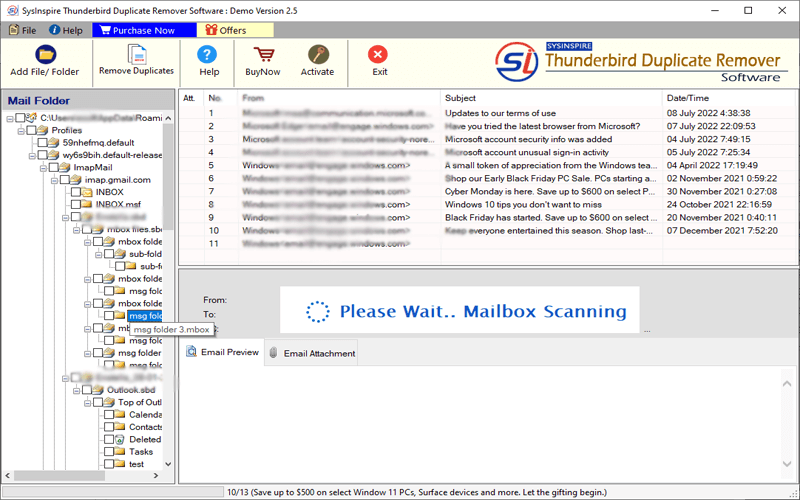
Step-4) Open mail folder and click on each email one by one to get a preview of email separately
Select required mail folders and hit the Remove Duplicates button from top menu bar.

Step-5) Select needed options and perform de-duplication job with selected settings-
- Email Duplicate Search Options
- Search in file or across folders
- Mail filtering by date
- Saving Location

Available settings and options to delete Thunderbird Email Duplicates.
- Email Duplicate Search Options: - Choose email properties - (To, CC, Subject, From, Attachments, and Body) and perform search based on the chosen properties.
- Search between folder or across folders: - Choose any of these de-duplication modes: -
- Search & Delete Within Each File: - find duplicate within the file/folder (one by one) and erase them easily.
- Search & Delete Across all files/folders: - find duplicate from all chosen folders and erase all at once.
- Mail filtering by date: - Filter emails from Thunderbird Mail folders from a specific date range and delete duplicate emails only for selected dates.
- Destintaion Path: - Choose a mode to save the resulting files when performing de-duplication.
- Save in Thunderbird: - Store the Mail folder by deleting duplicate emails on Thunderbird's local folder path.
- Manual Selection: - Choose a location yourself to save the resultant files/folder after erasing duplicates.
Step-6) Press the Remove Duplicates button and start removing email duplicates from Thunderbird mail folders.

If you need any kind of assistance, then please connect with us - Contact US