
Hotmail/Outlook.com setings for Third-Party App Login
Follow the method shown below to generate Outlook.com/Hotmail app password and login with third party apps.
Steps to Generate Outlook.com/Hotmail App Password for Third-Party Apps
Step 1:- Login to your Outlook.com or Hotmail.com account and visit to this link:- "https://account.microsoft.com/security"
Step 2:- Click on “Advanced Security options” and “Get Started” button.

Step 3:- Move to "Additional Security" section and click on "Two-Step Verification Turn On" and enable it.
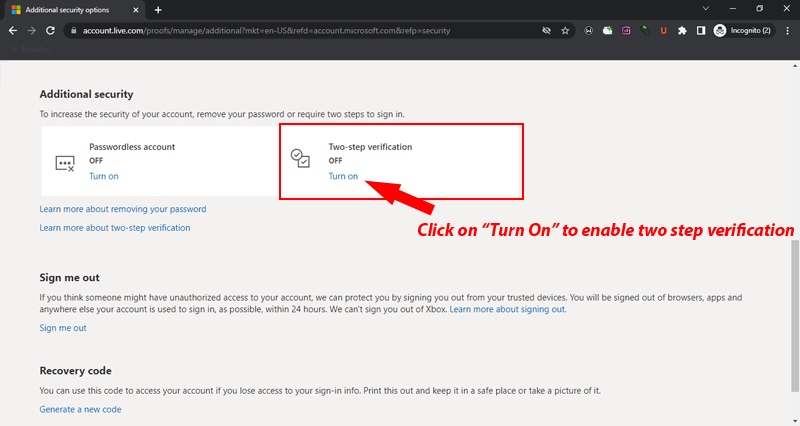
Step 4:- After enabling two-step verification, move to "App Passwords section" then click on “Create a new app password”.

Step 5:- Get the app password simply copy and click on "Done".

After this easily login with Outlook.com or Hotmail account on third-party apps without any trouble.