
Microsft Office 365 Account Setings For Third Party App Login
Apply the settings shown below in your Microsoft Office 365 account. By following the steps described below migrate/ backup/ import data in Office 365 account with third-party apps:-
- Step 1:- Disable Modern Authentication
- Step 2:- Turn Off Security Defaults in Azure Portal
- Step 3:- Disable MFA(Multi Factor Authentication)
Follow the steps shown below to turn off modern authentication in Microsoft 365 account: -
Step 1:- First visit to the link- “ https://portal.office.com/ “ and login to your account.

Step 2:- Next, click on the menu icon and then hit on “Show All” option.
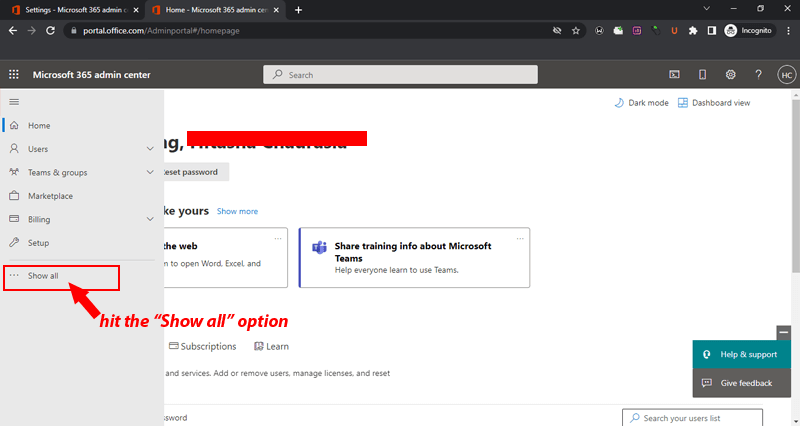
Step 3:- Click on Settings, expand all options and select "Org settings".

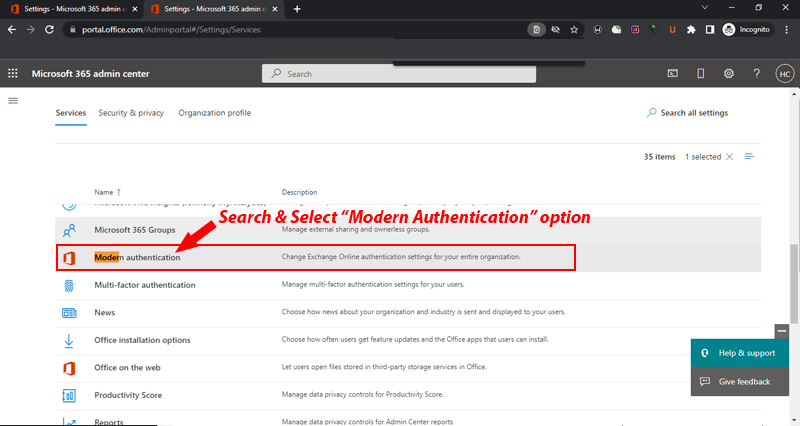
Step 4:- From the new opened screen, search the option “Modern Authentication” and click on it.
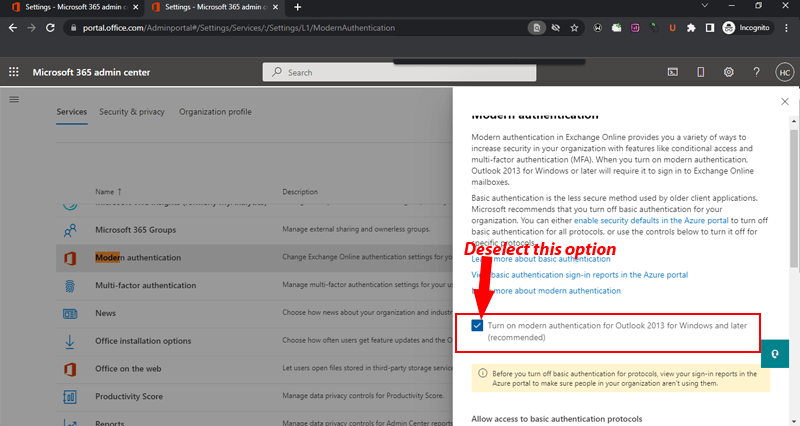
Step 5:- Deselect “Turn On modern authentication for Outlook 2013 for windows or later(recommended)” option by clicking on it.
Step 6:- Scroll down your mouse wheel and click on “Save”.

This method will turn off Modern Authentication in Microsoft Office365 account.
Follow these quick and simple steps to disable Azure Portal security Defaults .
Step 1:- Visit to the link “ https://portal.azure.com ” and login with your office 365 account.
Step 2:- Next select the "Manage Azure Active Directory" and click the “View” button.
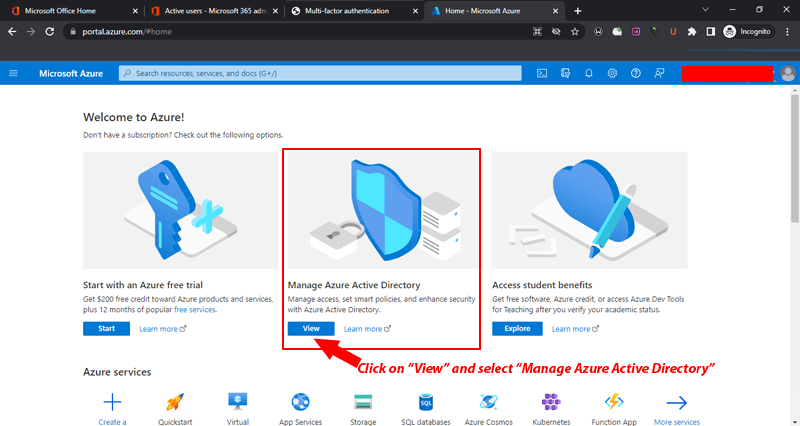
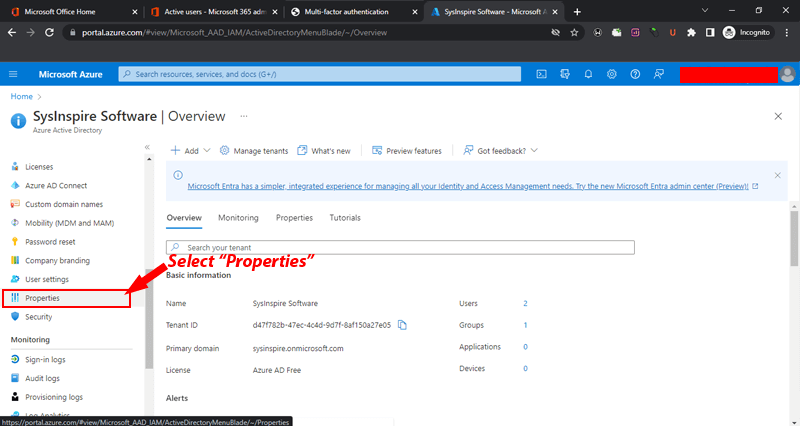
Step 3:- Click on "Properties" from the left-side panel in next opened screen.
Step 4:- From right-side pane, scroll your mouse and hit on "Manage Security defaults".
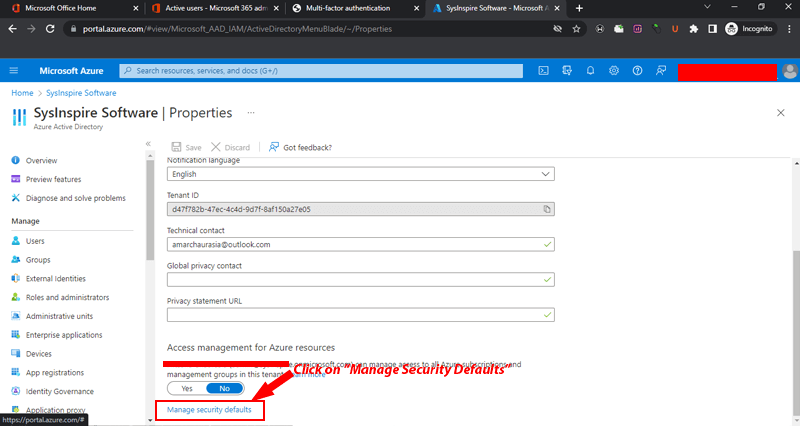
Step 5:- Click on“No” in "Enable Security default option and press the "Save" button.

Apply this method to disable Security Defaults settings in the Azure Portal.
Apply the steps shown below to disable Multi Factor Authentication in Microsoft 365 Account.
Step 1:- Logon to your Microsoft office365 account, then click the “Admin” option and visit to Microsoft 365 Admin centre.
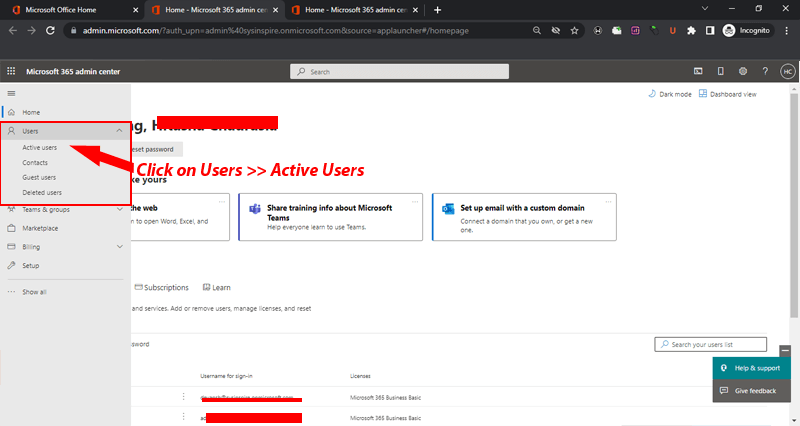
Step 2:- Click the "Menu icon"and hit the "Users" option, then select "Active Users" option.
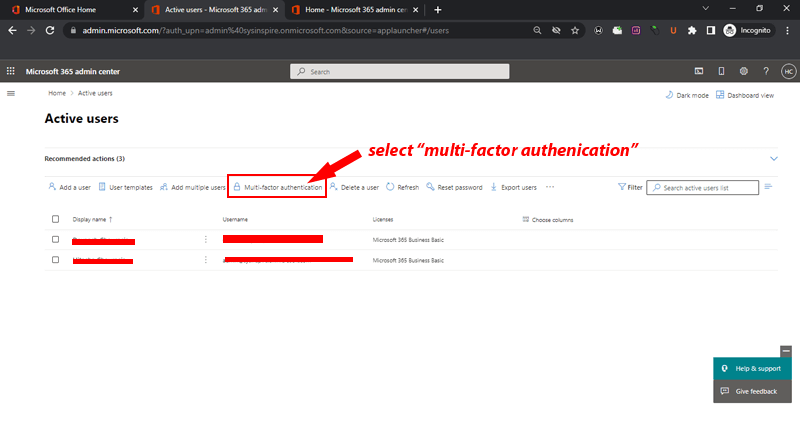
Step 3:- From "Active Users" screen click on "Multi Factor Authentication".
Step 4:- In the Multi-Factor Authentication screen, select user and click on "Disable".

With this quick process easily disable Multi-Factor Authentication in Office365 account.