ZohoMail Account Setings For Third Party App Login
For Login ZohoMail accounts in third party apps users have to follow two steps shown in the below mentioned sections-
- Step 1:- Enable 2-Step Verification
- Step 2:- Create App Specific Password
Steps to Enable 2-Step Verification in Zoho Mail Account: -
Step 1:- Login to your ZohoMail account, hit on your profile, then click on "MY Account" option.

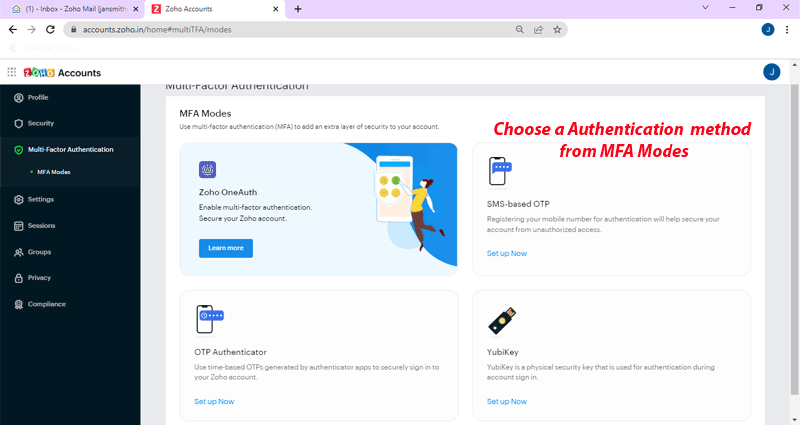
Step 2:- Click on Multi-Factor Authentication tab, choose a authentication method from different options:-
Enable SMS-Based OTP Authentication in ZohoMail: -
Enable Time Based OTP Authentication: -
Enable YubiKey in Zoho Mail Account: -
Step 3:- Applying these simple steps Enable Multi-Factor Authentication in your ZohoMail account
Steps to Generate ZohoMail Application-Specific Passwords.
Step 1:- Login to ZohoMail account, click on your Profile icon and click on "My Account" option.
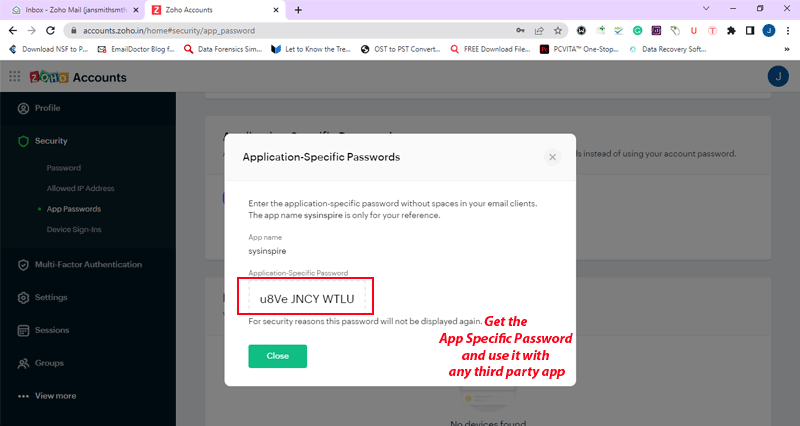
Step 2:- Click on the Security >> App Passwords tab and click the Generate New Password button.

Step 3:- Enter App Name and click the "Generate" button.

Step 4:- Get your Application-Specific Password and use it for ZohoMail account third party app login.