Introduction
Do you want to migrate EML files to your Office 365 mailbox without losing important emails or attachments? Many users store their emails in EML format while using email clients such as Thunderbird, Windows Live Mail, Apple Mail, or Outlook Express. However, importing a large number of EML files into Office 365 manually can be time-consuming and may not preserve the original folder structure.
In this guide, you’ll learn what an EML file is, why users migrate EML files to Office 365, the limitations of manual methods, and a professional solution that enables secure batch migration while preserving email content, attachments, metadata, and folder hierarchy.
What is an EML file?
An EML file is a standard email file format used by several desktop email applications, including Windows Live Mail, Mozilla Thunderbird, Apple Mail, Outlook Express, and others. Each EML file contains a complete email message along with all its associated information.
An EML file stores:
- Email message
- Attachments
- Sender and recipient details
- Email headers
- Date and time information
- HTML formatting
- embedded images
EML files are widely used for email backup, archiving, and transferring email messages between different email clients.
Benefits of Importing EML Files to Office 365
Migrating EML files to Office 365 provides several advantages:
- Imports complete email data.
- Preserves original email formatting.
- Maintains attachments without modification.
- Retains email metadata and internet headers.
- Supports bulk migration of multiple EML files.
- Preserves folder hierarchy during migration.
- Minimizes the risk of email data loss.
Limitations of Manual Methods
Although Office 365 supports email synchronization through Outlook, manually importing hundreds of EML files can be challenging.
Some common limitations include:
- Time-consuming process.
- Requires Outlook configuration.
- Difficult to import multiple EML files simultaneously.
- Greater possibility of human error.
- Folder structure may not remain organized.
- Not suitable for large-scale email migration projects.
Professional Solution to Migrate EML Files to Office 365
If you’re looking for a simple and reliable way to migrate EML files, SysInspire EML to Office 365 Converter Software offers an efficient solution. The software is designed to import EML files directly into Office 365 mailboxes while maintaining the original email structure.
It transfers emails along with attachments, metadata, formatting, and folder hierarchy, making it suitable for both individual users and business professionals handling bulk email migrations.
Key Features of SysInspire EML to Office 365 Converter
- Import individual EML files or complete folders.
- Supports batch migration of multiple EML files.
- Preserves email formatting and metadata.
- Maintains attachments during migration.
- Keeps original folder hierarchy intact.
- Built-in email preview before migration.
- Direct migration to Office 365 mailboxes.
- Supports exporting EML files to other cloud email services.
- Compatible with all major Windows operating systems.
- Free demo version available for evaluation.
How to Use SysInspire EML to Office 365 Converter?
Follow these simple steps to migrate EML files into Office 365:
Step 1: Download and install SysInspire EML to Office 365 Converter on your Windows computer. Launch the software after installation.

Step 2: Click Add EML Files or Add EML Folder, then browse your computer and load the required EML files.

Step 3: After scanning, preview your emails and attachments to verify the selected mailbox data before migration.
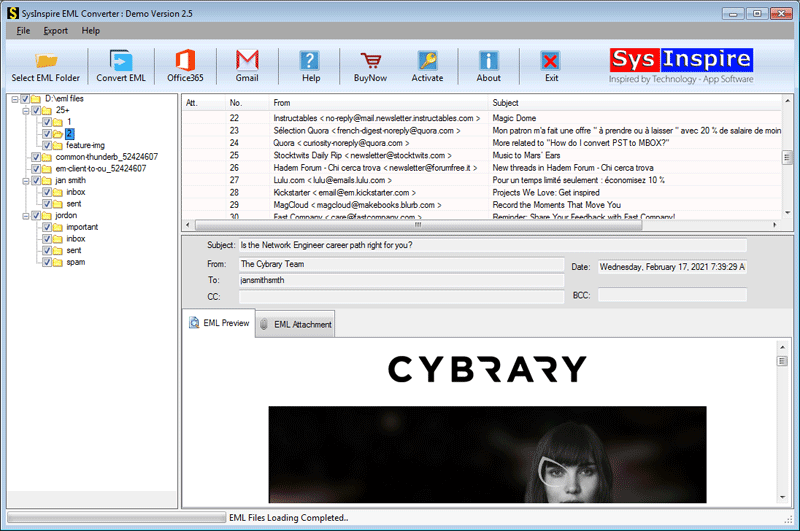
Step 4: Click Convert EML, choose Export to Office 365, enter your Office 365 account credentials, and start the migration process.

Step 5: Once the migration is completed successfully, the software displays a confirmation message indicating that all selected EML files have been imported into your Office 365 mailbox.

Frequently Asked Questions (FAQs)
Can I migrate multiple EML files to Office 365 at once?
Yes. The software supports batch migration, allowing you to import multiple EML files into Office 365 in a single process.
Will my attachments remain unchanged?
Yes. The software preserves attachments, email formatting, metadata, internet headers, and other email properties throughout the migration.
Can I preview my emails before migration?
Yes. The built-in preview feature lets you verify email content and attachments before starting the migration.
Which Windows versions are supported?
The software supports Windows 11, Windows 10, Windows 8.1, Windows 8, Windows 7, Vista, XP, and other Windows editions.
Is a free trial available?
Yes. The free demo version allows users to migrate up to 25 emails from each folder for evaluation before purchasing the licensed version.
Conclusion
Migrating EML files to Office 365 is an effective way to centralize your email data and access it securely from anywhere. While manual methods may be suitable for a small number of emails, they become inefficient when dealing with large EML archives. A professional EML to Office 365 migration tool simplifies the entire process by preserving email integrity, maintaining folder hierarchy, supporting batch migration, and ensuring a smooth transfer without data loss. Whether you’re migrating personal emails or business mailboxes, using a dedicated solution helps complete the migration quickly, securely, and efficiently.