Introduction
Are you facing the Outlook error “The Operation Failed. An Object Could Not Be Found” while sending emails, receiving messages, or accessing Outlook data? This error can occur due to a corrupted Outlook profile, Offline Address Book issues, incorrect data file configuration, or a damaged PST file.
If the problem is related to a corrupted PST file, recovering the mailbox data can help you access your important emails and other Outlook items again. In this guide, we will discuss the common causes of this error, manual troubleshooting methods, and how SysInspire PST Converter Software can help recover data from a problematic PST file.
What Does “The Operation Failed. An Object Could Not Be Found” Mean?
This Outlook error generally means that Outlook is unable to locate or access a required mailbox object or data component.
Users may encounter the error while:
- Sending or receiving emails
- Accessing Outlook folders
- Synchronizing mailbox data
- Working with an Offline Address Book
- Opening or accessing a PST file
The exact cause depends on the Outlook environment and the operation being performed.
Common Causes of the Fix Outlook Error
Some common reasons behind “The Operation Failed. An Object Could Not Be Found” include:
- Corrupted Outlook profile
- Offline Address Book synchronization problems
- Damaged or corrupted PST file
- Incorrect Outlook data file configuration
- Outlook application or add-in issues
- Moved, renamed, or inaccessible PST file
How to Fix “The Operation Failed. An Object Could Not Be Found” Error?
Method 1: Restart Outlook
Close Outlook completely and restart your computer. Then open Outlook and try the operation again. If the error continues, move to the next method.
Method 2: Create a New Outlook Profile
A damaged Outlook profile can sometimes cause this error. Create a new profile and configure your email account again.
Steps:
- Close Outlook.
- Open Control Panel and select Mail.
- Click Show Profiles.
- Select Add.
- Create a new profile and add your email account.
- Open Outlook using the new profile.
- Check whether the error is resolved.
Method 3: Check the Outlook Data File
Go to File > Account Settings > Account Settings > Data Files and verify that the required PST file is available at its configured location.
If the PST file is damaged or inaccessible, Outlook may continue showing errors when trying to access mailbox data.
Method 4: Repair the PST File with SysInspire PST Converter
If the problem is caused by a corrupted PST file, SysInspire PST Converter Software provides a dedicated way to scan, recover, and export Outlook mailbox data.
The software can recover emails, attachments, contacts, calendars, tasks, notes, and other mailbox items from PST files. It also provides a preview of recovered data before conversion.
How to Recover Outlook Data Using SysInspire PST Converter?
Follow these simple steps:
Step 1: Launch the Software
Download and install SysInspire PST Converter on your Windows computer and launch the application.

Step 2: Add the PST File
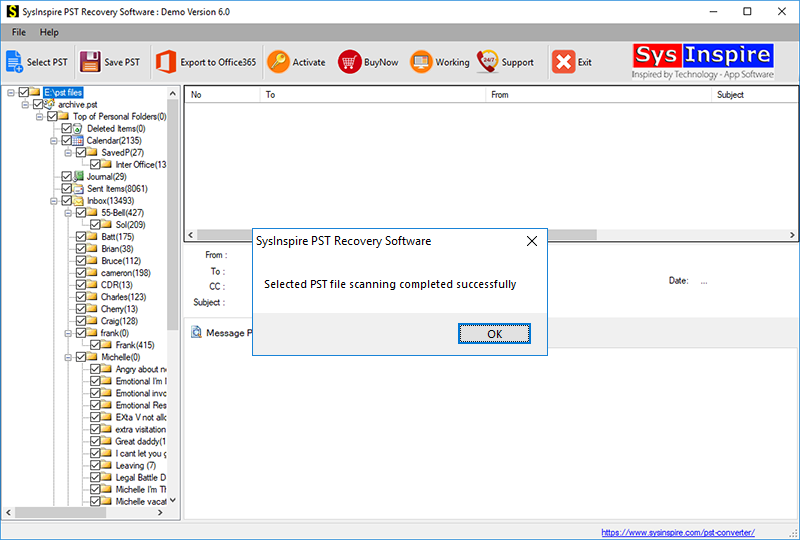
Click the option to add or select the PST file from your computer. The software will scan the selected file and display its mailbox folders.

Step 3: Preview Recovered Data
After scanning, preview emails, attachments, contacts, calendars, and other available Outlook items.
Step 4: Select the Output Format
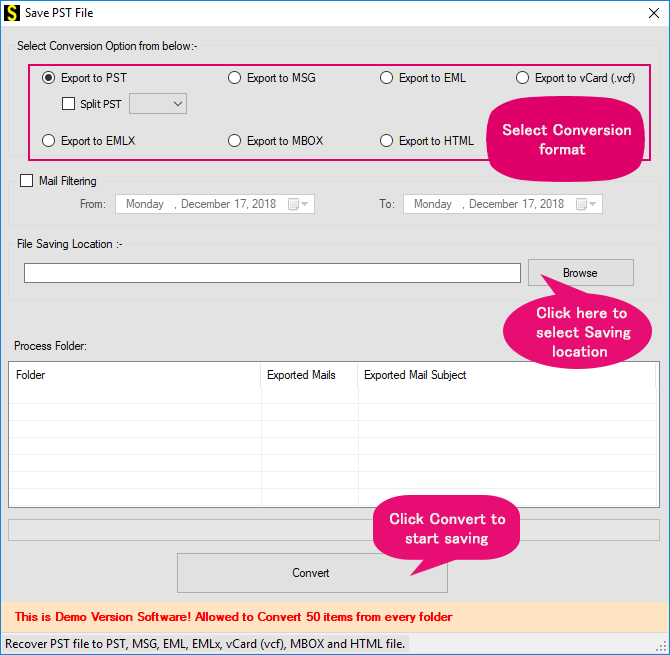
Choose the required export format or supported email platform according to your requirements.
Step 5: Export the Recovered Data
Select the destination location and start the conversion. Once completed, verify the recovered Outlook data in the selected destination.

Key Features of SysInspire PST Converter
- Recover data from corrupted PST files.
- Preview emails and attachments before conversion.
- Supports selective folder recovery.
- Recover emails, contacts, calendars, tasks, and notes.
- Supports multiple output formats.
- Maintains email content and attachments.
- Supports batch PST conversion.
- Provides an easy-to-use interface.
Frequently Asked Questions
Why does Outlook show “The Operation Failed. An Object Could Not Be Found”?
The error can occur because of Outlook profile problems, Offline Address Book issues, incorrect data file configuration, or PST corruption.
Can a new Outlook profile fix this error?
Yes. If the existing Outlook profile is damaged, creating a new profile may resolve the problem.
Is PST corruption responsible for this error?
PST corruption can be one possible cause, but the error may also result from profile or synchronization issues.
Can SysInspire recover data from a corrupted PST?
Yes. SysInspire PST Converter is designed to scan and recover mailbox data from corrupted or damaged PST files and export it into supported formats.
Will my attachments be recovered?
The software is designed to recover email attachments along with the associated mailbox data.
Conclusion
The “The Operation Failed. An Object Could Not Be Found” error in Outlook can occur because of several configuration, profile, synchronization, or PST-related issues. You can first try creating a new Outlook profile and checking the configured data file.
If the issue is caused by a corrupted PST file, SysInspire PST Converter can help scan the PST, preview recoverable mailbox data, and export it into a suitable format. This makes it easier to recover important Outlook emails and other mailbox items when the original PST is not working properly.