Posted by sysinspire
Posted on: June 17, 2026
Categories: OST Converter, OST to PST, Uncategorized
Reading Time: 4 minutes
In today’s blog, I will explain the process of exporting an OST file to PST in Outlook 2013 in a safe and effective manner. Thanks to some excellent features, this task can be performed easily and without any risk of data loss—even non-technical users can do it. Let’s explore how you can make this process simple and hassle-free.
What is the difference between an OST file and a PST file?
An Offline Storage Table (OST) file is stored on a server. This file can be accessed without using any data or an internet connection. It allows users to work offline, as it syncs with the server once the connection is restored. OST files are created in Outlook, but occasionally their connection with the server can break.
A Personal Storage Table (PST) file, on the other hand, is a different format. It is primarily used for accounts like POP, IMAP, and webmail. Unlike OST files, PST files do not rely on a server connection, as they store data locally.
What is an easy way to export an OST file to PST in Outlook 2013?
Do you want to easily export OST files to PST in Outlook but aren’t sure how? You can now use the SysInspire OST to PST Converter Tool to effortlessly export OST files to PST format.
This software offers several advanced features that are easy to use and completely risk-free. It is compatible with all Windows systems, making it accessible to everyone. Additionally, a free demo version is available for users to try out before purchasing.
Its best features are available for use —
- This software is accessible to everyone as it supports multiple languages, making it suitable for both English and non-English speaking users.
- The SysInspire OST to PST converter Tool is designed for both technical and non-technical users, ensuring ease of use.
- The software first scans the OST file and then completes the conversion process in just a few simple steps.
- Using this software does not harm the emails within the OST file, as it has been thoroughly tested by experts to ensure reliability.
- With this software, you can export your OST file into various formats such as PST, EML, MSG, EMLX, HTML, and more.
- You can also export the OST file directly to cloud services like Yahoo Mail, Gmail, or Office 365.
- The software is very user-friendly, allowing anyone to use it with ease.
- It comes with a 30-day guarantee; if for any reason your OST file cannot be converted to PST, you can claim a full refund within 30 days.
- You can download this software on any Windows operating system, including Windows 11, 10, 8.1, 8, 7, XP, Vista, and other versions.
How to use the SysInspire OST to PST Converter Tool?
Download SysInspire OST to PST Convert Tool and install it on your device.
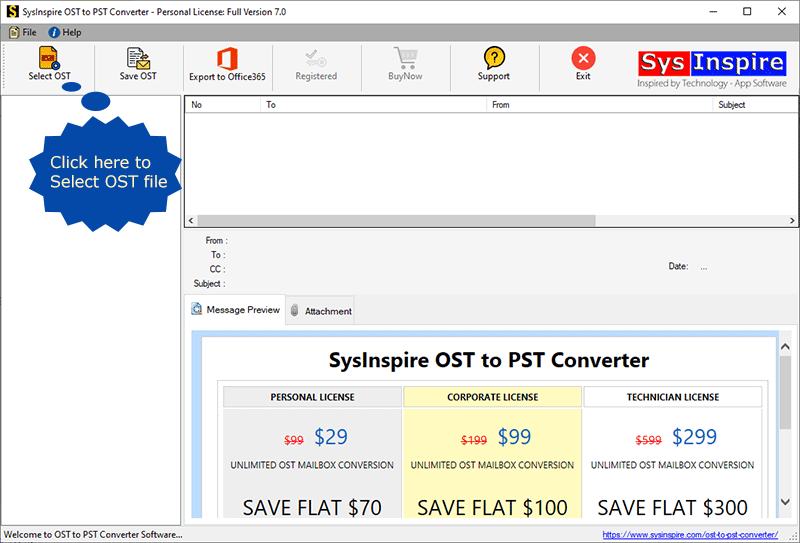
Open the software and click the ‘Select OST’ button on the first screen.

Now, select either the ‘Single File’ or ‘Bulk OST File Selection’ option and click ‘Next’.
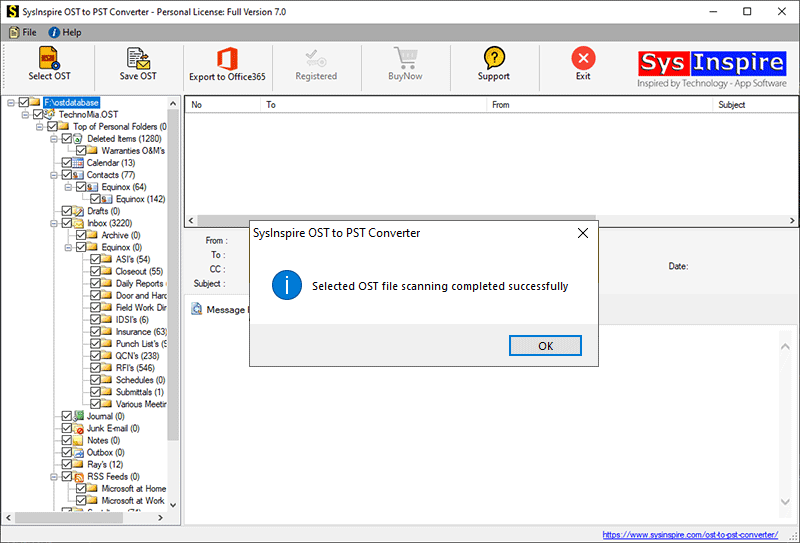
After this, select and add the OST files in the software for the conversion process, then click the ‘Start Scanning’ button.

Extract the OST files and load all mailbox folders and items into the software.
Select the required folders and click the ‘Save OST’ button on the top menu bar.
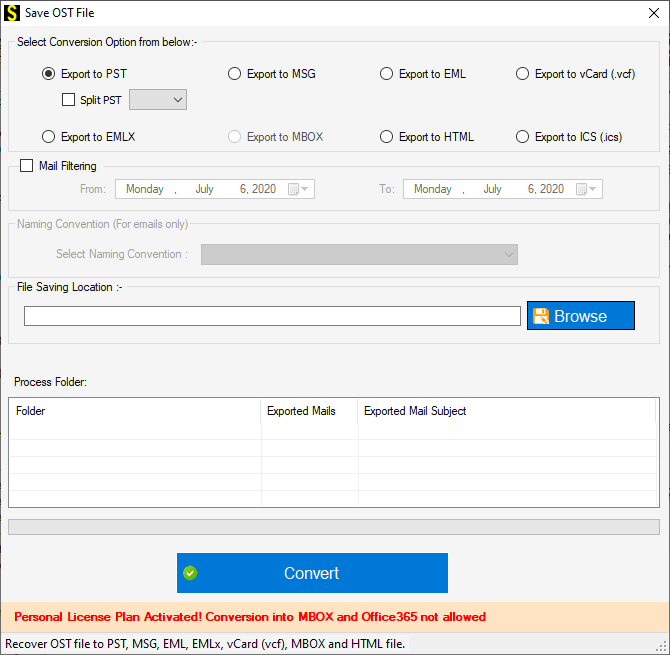
Next, select the Export to PST radio button from the conversion options list.
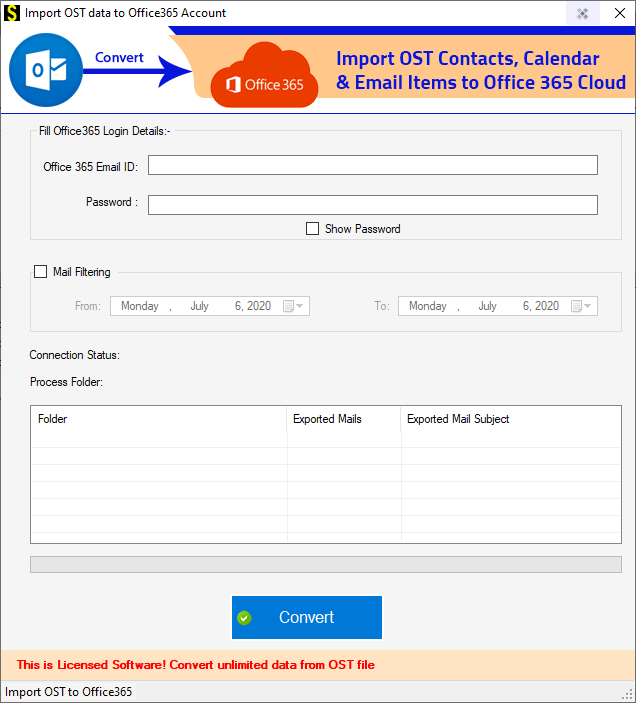
Click the ‘Browse’ button to select a location to save the result files.
In the final step, click the ‘Convert’ button to start the process of converting the OST file to PST.

Free Demo Version
You can try the free demo by downloading the SysInspire OST to PST Converter tool; it is available to all users. With the demo, you can convert up to 25 emails from OST to PST and verify that the software is working correctly.
Conclusion
I hope you enjoyed my blog post explaining how to export an OST file to PST in Outlook using the SysInspire OST to PST Converter tool. It offers excellent features and is completely risk-free to use. Therefore, you should download and try it out today.