Introduction
Do you want to Import EML to IMAP Account Server without losing your email data? Many users save important emails in EML format using applications like Mozilla Thunderbird, Windows Live Mail, Apple Mail, and Outlook Express. However, when switching to an IMAP-enabled email service such as Gmail, Office 365, Yahoo Mail, or any custom mail server, manually uploading hundreds of EML files can be difficult and time-consuming.
In this guide, you’ll learn what an EML file is, why users migrate EML files to IMAP, the drawbacks of manual methods, and a professional solution that allows you to import multiple EML files directly into an IMAP account while preserving email content, attachments, and folder structure.
What is an EML File?
An EML file is a standard email message format used by many desktop email clients. Every EML file stores a single email message together with all of its associated information.
An EML file generally includes:
- Email message content
- Sender and recipient details
- Subject line
- Date and time information
- CC and BCC fields
- Internet message headers
- HTML formatting
- inline images
- file attachments
Because of its universal compatibility, the EML format is widely used for email backup, migration, archiving, and sharing across different email applications.
Why Import EML Files to an IMAP Account?
Moving EML files to an IMAP account offers several benefits, especially for users who want to access their emails from multiple devices.
Some major advantages include:
- Upload multiple EML files directly to an IMAP mailbox.
- Access emails from any device connected to the same account.
- Keep emails synchronized across desktop, mobile, and webmail.
- Preserve attachments, formatting, and email properties.
- Organize archived emails inside your existing mailbox.
- Eliminate the need to store emails locally.
- Simplify email migration to modern cloud-based services.
Limitations of Manual Methods
Although there are manual techniques available for uploading EML files to an IMAP account, they are only suitable for a small number of emails.
Some common limitations are:
- Requires configuring an IMAP account in an email client.
- Emails often need to be dragged and dropped manually.
- Very time-consuming for bulk email migration.
- Folder hierarchy may not be maintained properly.
- Greater possibility of missing emails during the process.
- Not ideal for users without technical knowledge.
Professional Solution to Import EML Files to an IMAP Server
For users looking for a faster and more reliable method, SysInspire EML to IMAP Converter Software provides a secure solution for importing EML files into any IMAP-supported email account.
The software enables users to upload individual EML files or complete folders directly to IMAP while maintaining the original email structure. It preserves email content, attachments, sender and recipient information, subject, date, internet headers, formatting, and other important mailbox attributes throughout the migration process.
Whether you need to migrate a few emails or thousands of EML files, the software performs the process efficiently while maintaining complete data integrity.
Key Features of SysInspire EML to IMAP Converter
- Import individual EML files or complete folders.
- Batch upload multiple EML files to an IMAP account.
- Supports all IMAP-enabled email services.
- Preserves folder hierarchy during migration.
- Maintains email formatting, metadata, and attachments.
- Preview emails before starting the migration.
- Simple and user-friendly interface.
- Export EML files to multiple email platforms and file formats.
- Compatible with Gmail, Office 365, Yahoo Mail, Outlook.com, Zoho Mail, AOL Mail, Roundcube, Horde, and other IMAP servers.
- Works with all major Windows operating systems.
- Free trial version available for evaluation.
How to Use SysInspire EML to IMAP Converter?
Follow these simple steps to import EML files into your IMAP account:
Step 1: Download and install SysInspire EML to IMAP Converter on your Windows computer. Launch the software after installation.

Step 2: Click Add EML Files or Add EML Folder and browse your computer to select the required email files.

Step 3: Preview your emails, attachments, and mailbox information to verify the selected data before migration.
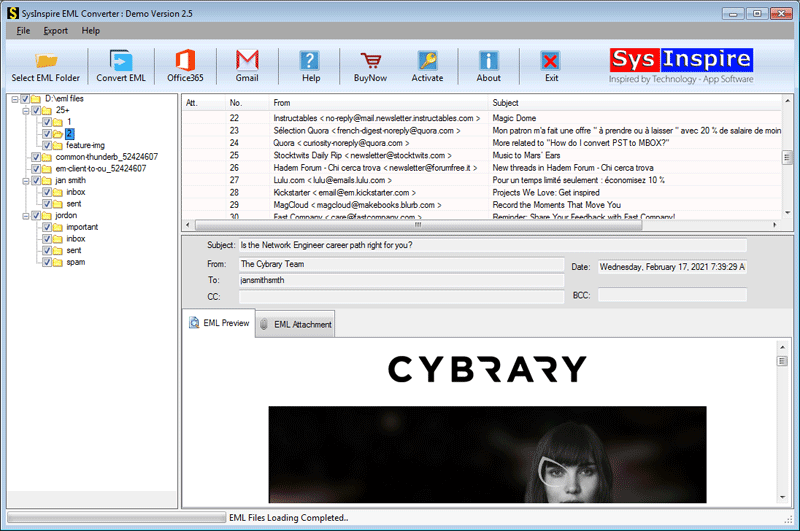
Step 4: Click Convert EML, choose IMAP as the destination, enter your IMAP account credentials, and start the import process.

Step 5: Once the migration is completed successfully, the software displays a confirmation message indicating that all selected EML files have been imported successfully.

You can now log in to your IMAP email account and access all imported emails from any supported device.
Frequently Asked Questions (FAQs)
Can I import multiple EML files into an IMAP account at once?
Yes. The software supports batch migration, allowing you to upload multiple EML files or complete folders to an IMAP account in a single process.
Will my email attachments remain intact?
Yes. The software preserves all attachments, email formatting, metadata, internet headers, and mailbox properties during migration.
Can I preview emails before importing them?
Yes. A built-in preview feature allows you to review your emails and attachments before beginning the import process.
Which IMAP email services are supported?
The software supports all IMAP-enabled email services, including Gmail, Office 365, Yahoo Mail, Outlook.com, Zoho Mail, AOL Mail, Roundcube, Horde, and many others.
Is there a free trial version?
Yes. The free demo version allows users to migrate up to 25 emails from each folder, enabling them to evaluate the software before purchasing the full version.
Conclusion
Import EML to IMAP Account Server is one of the most effective ways to centralize your email data and access it across multiple devices. While manual methods may work for a small number of emails, they become inefficient when dealing with large email collections.
SysInspire EML to IMAP Converter offers a fast, secure, and reliable solution for bulk EML migration. With support for batch import, complete data preservation, and compatibility with all major IMAP email services, the software simplifies the entire migration process while ensuring your emails remain accurate, organized, and easily accessible.