Introduction
Have you forgotten the password of your 7Z archive and cannot access the files inside it? If you have authorized access to the archive, you can use dedicated 7Z password recovery software to attempt to recover the forgotten password.
What is a 7Z File?
A 7Z file is a compressed archive used to store multiple files and folders in a single file. It helps save storage space and makes it convenient to transfer data. Users can also add password protection to keep the archive contents secure.
How to Recover a Password from a 7Z File?
SysInspire 7z Password Recovery Software allows users to attempt recovery of forgotten 7Z passwords. It provides three recovery methods—Brute Force, Mask, and Dictionary Attack—so you can select an approach according to the information you remember about the password.
Key Features of SysInspire 7z Password Recovery Software
- Three Recovery Methods: Brute Force, Mask, and Dictionary Attack.
- Character Support: Recovery settings can include letters, numbers, and special characters.
- Multi-Language Support: Supports different character sets and languages.
- Easy to Use: Simple interface for both technical and non-technical users.
- Copy Password: Allows you to copy the recovered password.
- Windows Support: Designed for supported Windows operating systems.
- Demo Version: A demo may be available to evaluate the software.
Three Methods to Unlock Password Protected 7Z
1. Brute Force Attack
This method checks different password combinations when you have little or no information about the forgotten password. The required time depends on password length and complexity.
2. Mask Attack
Mask Attack is useful when you remember some part of the password, such as specific characters or its approximate length. Providing this information can reduce the number of combinations that need to be checked.
3. Dictionary Attack
Dictionary Attack checks words and phrases from a selected dictionary or password list. It can be useful when the forgotten password was based on a common word or phrase.
How to Use SysInspire 7Z Password Recovery Software?
Step 1: Install the Software
Download and install the software on your Windows computer, then launch it.

Step 2: Select the 7Z File
Click the browse option and select the password-protected 7Z archive.

Step 3: Choose a Recovery Method
Select Brute Force, Mask, or Dictionary Attack according to the information you remember.
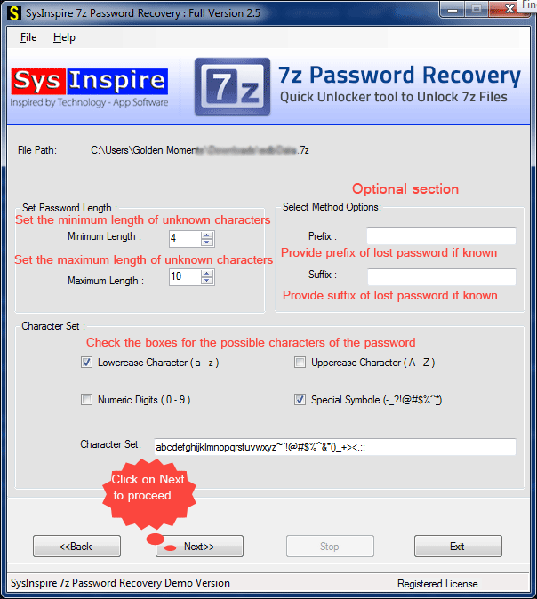
Step 4: Start Recovery
Configure the required settings and begin the recovery process.

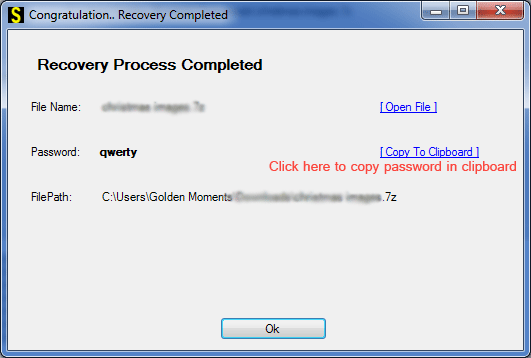
Step 5: Copy the Recovered Password
If the password is successfully recovered, copy it and use it to open the original archive.
Note: Always keep a backup of the original 7Z file and use password recovery software only for files you are authorized to access.
Free Demo Version
A demo version may be available to help users evaluate the software before purchasing. Check the current product details for the latest demo features and limitations.
Frequently Asked Questions
Q1. Can I recover a forgotten 7Z password?
Yes. Authorized users can attempt to recover a forgotten 7Z password using dedicated recovery software.
Q2. Which recovery methods are available?
Brute Force, Mask, and Dictionary Attack.
Q3. Which method is best if I remember part of the password?
Mask Attack can be useful when you remember specific characters or the password pattern.
Q4. Can special characters be included?
Depending on the selected recovery settings, letters, numbers, and special characters can be included in the recovery attempt.
Q5. Is a demo version available?
A demo version may be available. Check the current product information for its limitations.
Conclusion
Unlock Password Protected 7Z can prevent you from accessing important files. SysInspire 7z Password Recovery Software provides Brute Force, Mask, and Dictionary Attack methods to help authorized users attempt password recovery. Choose the method according to the information you remember and always keep a backup of the original archive.