Introduction
Are you looking to import EML files to Gmail Account so that you can access EML files from anywhere and anytime? If yes, then you don’t need to worry. In this blog, we have explained an automated method to import EML files to Gmail.
Overview
With the rise of cloud-based applications, now everyone wants to access their emails and their attachments from anywhere and anytime with the internet.
Everyone who has EML files wants to import EML files to cloud-based applications like Gmail and is looking for a reliable method for doing so.
Regarding this, we have explained an automated method to import EML files to Gmail so that you can easily access and open EML files from anywhere and anytime.
Read, Also
Best and Smart Automated Method to Import EML Files to Gmail Account Directly
SysInspire EML Converter Suite allows migration of EML to Gmail files in bulk so that users can save valuable time and effort. It is a well-known software that can migrate multiple EML files to cloud-based applications like Gmail. There are no file size restrictions, this software can easily migrate multiple EML files to Gmail with a few clicks.
Salient features of EML Converter Suite software
- Convert both EML and EMLX files with attachments to other file formats.
- Allows to add of multiple EML folders in the software.
- Convert EML files into another file format like MSG, MBOX, NSF, HTML, vCard, ICS, etc.
- Preview of EML files/folders before conversion in the preview panel.
- Enables loading of EML files from different locations of the user system and conversion in bulk.
- Maintains the folder hierarchy and data formatting while converting.
- Software preserves email formatting and maintains email meta properties (To, cc, bcc, subject, Date & Time) during conversion.
- Can migrate EML files to cloud-based applications like Office 365, Gmail, Yahoo Mail, Outlook.com and IMAP.
- Compatible with all editions of Windows Operating System such as Windows 11, 10, 8.1, 8, 7 & below versions.
How to use the SysInspire EML to Gmail Converter tool?
Download and install SysInspire EML Converter on your system.
Click the ‘Select EML’ button to select the EML file.
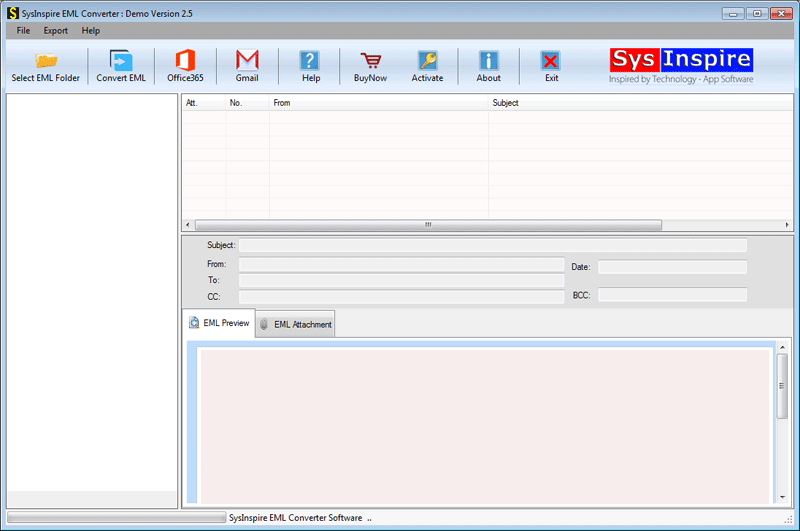
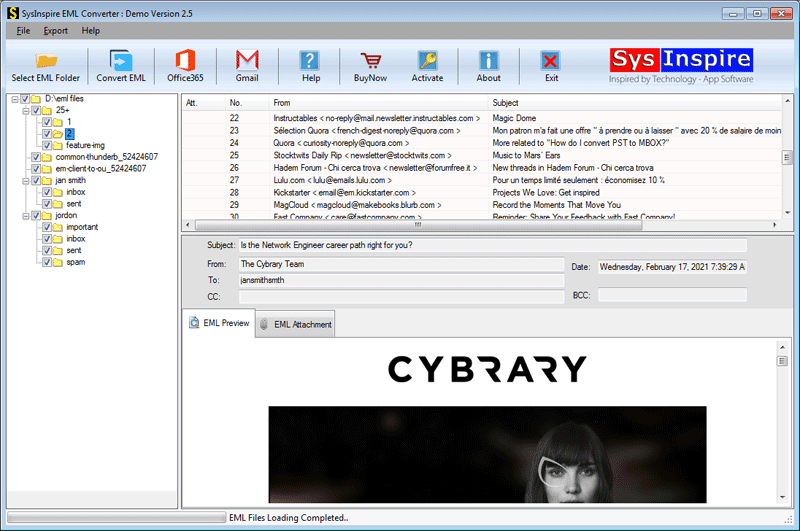
The software now scans the selected EML file and displays all folders and email items.

Select all the necessary email items and proceed to the next step.
In the next window, simply select the export format for the EML file and tap ‘Convert’.

Finally, you will see a confirmation message.
FAQ – (Frequently Asked Questions)
Which email applications support EML file conversion?
Outlook Express, Apple Mail, Windows Live Mail, Thunderbird, and many other email applications support EML files.
What is the benefit of using the demo version of this software?
By using the free demo version of this software, you can convert 25 emails from an EML file to Gmail for free.
Can I convert EML files to Yahoo Mail instead of Gmail?
Yes, apart from Gmail, you can also convert EML files to Yahoo Mail and IMAP, and complete the conversion in just a few steps.
Conclusion
In this blog, we have explained an automated method for importing EML Files to a Gmail Account Directly. There are manual methods also available, but they are complex and require technical knowledge. However, automated methods are easy and can be used by anyone technical and non-technical people.