Introduction
Office 365 is a cloud-based service, while EML is an offline file format. EML files are typically accessed through email clients, but if you want to access them via the internet, you need to migrate the EML files to the cloud-based application, Office 365.
Reasons to Upload EML files into Office 365
- You can access Office 365 anytime, from anywhere.
- Office 365 offers a wide range of advanced features to help you manage your work effectively.
- It includes applications like Word, Excel, PowerPoint, Outlook 365, and more.
- Office 365 provides ample storage space, with options to expand it as needed.
Professional Method to upload EML files to Office 365
For a professional method to upload EML files to Office 365, you can use third-party software like SysInspire EML to Office 365 Converter Software. This is the most advanced and reliable tool to import EML files to Office 365 in bulk and do migration with a few clicks.
This tool allows you to load individual EML files or entire folders.
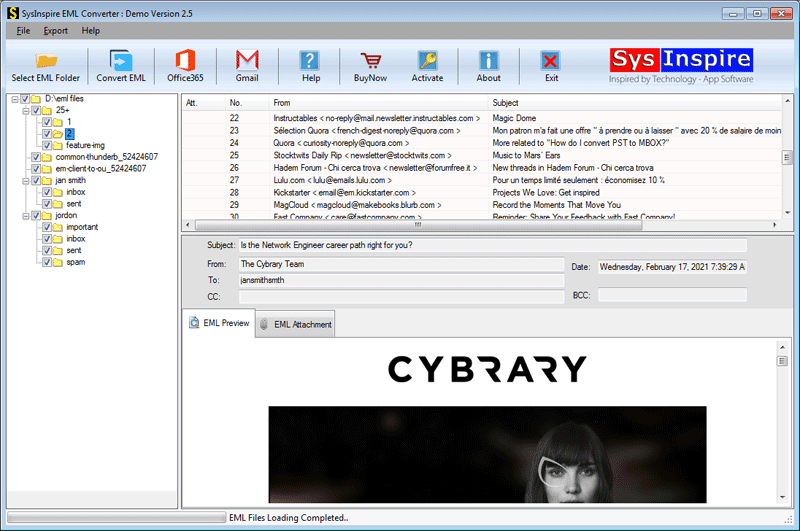
- Its preview panel displays the inner content of EML files, enabling you to select specific files or folders for migration to Office 365.
- The software transfers EML files to Office 365 while preserving meta properties (To, CC, BCC, Subject, From, etc.).
- It supports exporting EML files to other cloud-based applications such as Gmail, Yahoo Mail, and IMAP.
- It can migrate EML/EMLX files from email clients like Windows Live Mail, Windows Mail, Thunderbird, Outlook Express, Apple Mail, and others.
- The tool is compatible with all versions of Windows, including Windows 11, 10, 8.1, 8, 7, Vista, XP, and older editions.
Steps to upload EML files to Office 365
Download, install and launch SysInspire EML to Office 365 converter Software in your system.
Click on Select EML file/folder button to add EML files or EML folders.

Load the EML files into the software and preview files/folders in the preview panel.

Choose the EML files and folders and click on Import to Office 365 button.
Login to your Office 365 by entering your account credentials.

Select and apply the settings of the folder input option and Mail filtering option.

Click on the Connect & Import button and start exporting EML files to Office 365 account.
Frequently Asked Questions (FAQs)
1. Can I import multiple EML files into Office 365 at once?
Yes, you can use a professional EML to Office 365 Converter to import multiple EML files in bulk.
2. Can I import an entire folder of EML files into Office 365?
Yes, the SysInspire EML to Office 365 Converter allows you to select and import entire folders of EML files.
3. Will the email properties remain intact during migration?
Yes, the tool preserves email properties such as To, CC, BCC, Subject, and From during migration.
4. Can I preview EML files before importing them into Office 365?
Yes, the software provides a preview option to view EML file content before starting the migration.
5. Is there a free demo version of the EML to Office 365 Converter?
Yes, the demo version allows you to migrate up to 25 EML files to Office 365 and test the software’s features.
Conclusion
Using the professional method, you can easily import EML files to Office 365 with SysInspire EML to Office 365 Converter Software. The demo version allows you to migrate up to 25 EML files to Office 365 and explore its features. If satisfied, you can proceed to purchase the full version.