Introduction
Have you forgotten the password of your important 7Zip file and are unable to open it? A password-protected 7Z archive may contain important documents, photos, or other files. If you have legitimate access to the archive, you can use a dedicated password recovery tool to attempt to recover the forgotten password.
How to Recover a Password-Protected 7Zip File?
SysInspire 7z Password Recovery Software helps users attempt to Recover Lost 7Z/7Zip File using three different methods: Brute Force Attack, Mask Attack, and Dictionary Attack. The software provides a simple interface and can be used by both technical and non-technical users. A free demo is also available to test its recovery capabilities.
Features of SysInspire 7z Password Recovery Software
- Supports password-protected 7Z/7Zip archives.
- Provides Brute Force, Mask, and Dictionary Attack methods.
- Supports passwords containing letters, numbers, and special characters.
- Easy-to-use interface for all types of users.
- Allows users to copy the recovered password to the clipboard.
- Compatible with different Windows operating systems.
- A demo version is available for evaluation.
- A 30-day money-back guarantee is offered according to the applicable product terms.
Three Methods to Recover 7Zip Password
1. Brute Force Attack: This method tries different password combinations according to the selected character settings.
2. Mask Attack: If you remember some characters or the pattern of your password, this method can help narrow down the possible combinations.
3. Dictionary Attack: This method checks possible passwords from a dictionary or password list and can be useful when the password is based on common words.
How to Use SysInspire 7z Password Recovery Software?
Step 1: Download and install the software on your Windows computer.

Step 2: Launch the application and browse for your password-protected 7Zip file.

Step 3: Select the appropriate recovery method from Brute Force, Mask, or Dictionary Attack.
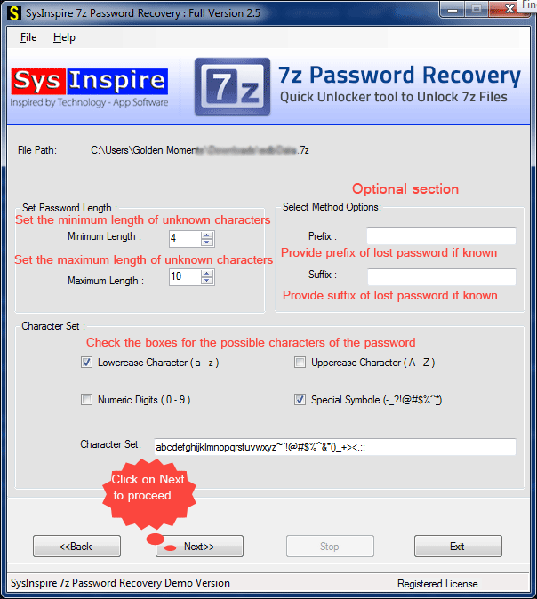
Step 4: Configure the required settings and start the recovery process.

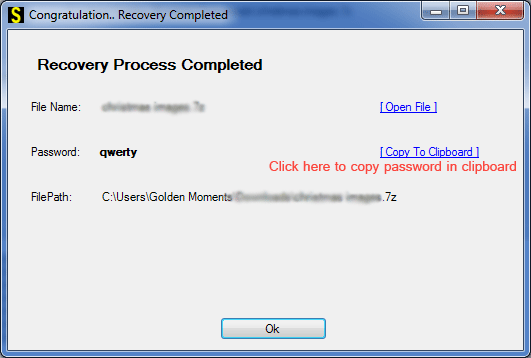
Step 5: After successful recovery, copy the password and use it to open your original 7Zip archive.
It is recommended to keep a backup of the original 7Zip file before starting the recovery process.
Free Demo Version
SysInspire 7z Password Recovery Software also provides a demo version that allows users to test the application before purchasing. The demo can help you check whether the software is suitable for your password-protected 7Zip archive.
Conclusion
Recover Lost 7Z/7Zip File password can be difficult when you do not remember the original password. SysInspire 7z Password Recovery Software provides three recovery methods—Brute Force, Mask, and Dictionary Attack—to help users attempt password recovery. Its simple interface and demo version make it easy to evaluate the software before using the full version.