Posted by sysinspire
Posted on: July 14, 2026
Categories: MBOX to PST, Uncategorized
Reading Time: 5 minutes
Introduction
Do you have an MBOX file that you want to open in your Gmail account? Many users switch from desktop email clients to Gmail but don’t know how to access their old emails. Since Gmail does not support MBOX files directly, you need the right method to import them. In this guide, we will explain both the manual and professional ways to upload MBOX files to Gmail. We will also introduce a reliable solution that helps transfer emails safely without changing the original data.
What is an MBOX File?
An MBOX file is a popular email storage format used by many email applications like Mozilla Thunderbird, Apple Mail, Opera Mail, SeaMonkey, Eudora, and others. It stores multiple email messages in a single file, making email management easy. However, Gmail cannot open MBOX files directly, so users need another method to import their emails.
What is Gmail?
Gmail is one of the most popular cloud-based email services developed by Google. It allows users to send, receive, organize, and manage emails from any device with an internet connection. Gmail also offers features like spam protection, labels, powerful search, large storage, and integration with Google Workspace applications.
Why Do Users Need to Upload MBOX Files to Gmail?
There are many reasons why users want to move MBOX files into Gmail.
- Access emails from anywhere.
- Keep all emails stored safely in the cloud.
- Free up computer storage.
- Manage old and new emails in one place.
- Easily search emails using Gmail search.
- Access emails on mobile devices without copying files.
Benefits of Importing MBOX Files into Gmail
Uploading MBOX files to Gmail provides several advantages.
- Access emails anytime and anywhere.
- Secure cloud storage.
- Easy email search.
- Better email organization with labels.
- No risk of losing emails due to computer failure.
- Easy sharing and backup.
- Works across multiple devices.
Manual Method to Upload MBOX Files to Gmail
Users can manually upload MBOX emails using Mozilla Thunderbird.
Steps
- Install Mozilla Thunderbird.
- Import the MBOX file into Thunderbird.
- Add your Gmail account to Thunderbird using IMAP.
- Select the imported mailbox.
- Drag and drop emails into your Gmail folders.
- Wait until Thunderbird syncs all emails with Gmail.
Limitations of the Manual Method
Although the manual method is free, it has several drawbacks.
- Takes a lot of time.
- Not suitable for large MBOX files.
- Requires Thunderbird installation.
- Risk of synchronization errors.
- May not preserve folder structure properly.
- Technical knowledge is required.
- Bulk migration becomes difficult.
Best Solution for Instant MBOX to Gmail Migration
If you want a faster and more reliable solution, SysInspire MBOX to Gmail Converter can make the process much easier. The software is designed to import MBOX files directly into Gmail without lengthy manual steps. It supports single as well as multiple MBOX files and helps keep email properties such as Subject, Sender, Receiver, Date, Attachments, and Folder Structure unchanged during migration. The interface is simple, so both beginners and professional users can operate it without difficulty. The software also includes a preview option that allows users to check emails before starting the import process. This makes the migration safer, quicker, and more convenient.
Key features of SysInspire MBOX to Gmail Converter software:
- Import Single and Multiple MBOX Files.
- Supports MBOX, MBX, MBS, and related formats.
- Preview emails before migration.
- Simple and easy-to-use interface.
- Direct import to Gmail.
- Export to Apple Mail, Yahoo Mail, Office 365, IMAP, and other email platforms.
- Maintains email formatting and metadata.
- Supports Windows 11, 10, 8.1, 8, 7, XP, and Vista.
- Free demo available to import up to 25 emails.
How to use SysInspire MBOX Converter Tool?
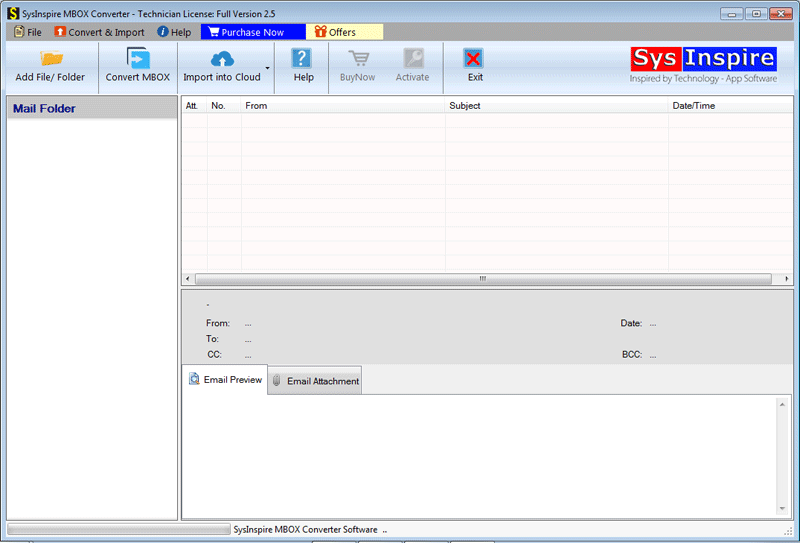
Install SysInspire’s MBOX Converter on your Window.
Then, tap the ‘Add File’ button.
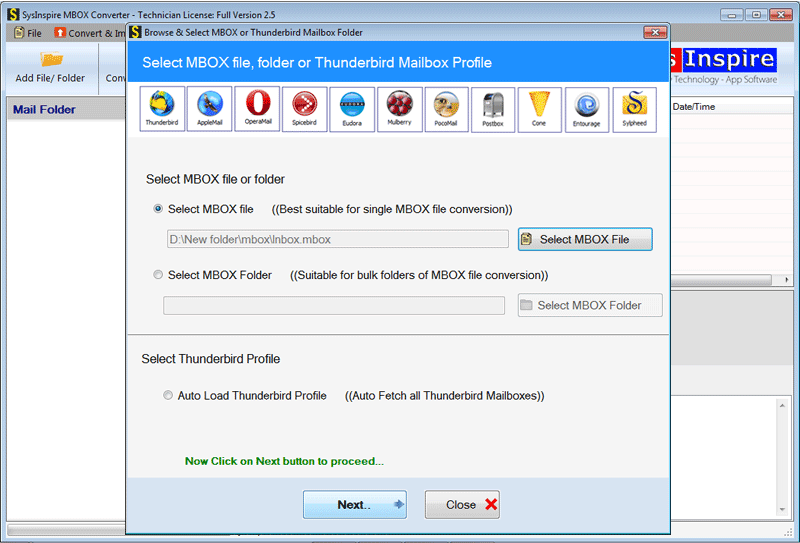
On the next screen, select the MBOX file according to your requirements and click.
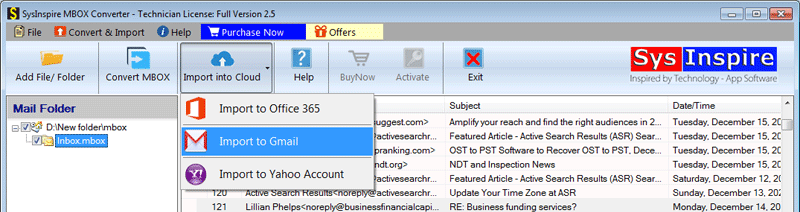
This tool will load all the data and folders present in the MBOX file selected by the user in the step mentioned above.

Select the ‘Import into Cloud’ option and then select the ‘Import to Gmail’ button.
Provide all the account details and get started.
Frequently Asked Questions (FAQ)
Can I upload multiple MBOX files at the same time?
Yes. The software supports both single and multiple MBOX file migration.
Does the software keep attachments safe?
Yes. All attachments and email properties remain unchanged during migration.
Can I preview emails before importing?
Yes. A built-in preview feature is available.
Does it support all Windows versions?
Yes. It works on Windows 11, 10, 8.1, 8, 7, XP, Vista, and earlier versions.
Is a free version available?
Yes. The demo version allows users to import up to 25 emails.
Conclusion
Uploading MBOX files to Gmail becomes much easier when you use the right method. While the manual process is available, it can be slow and difficult, especially for large mailbox files. A professional solution like SysInspire MBOX to Gmail Converter helps simplify the migration process while keeping your emails safe and organized. We hope this guide has helped you understand the complete process of importing MBOX files into Gmail and choosing the method that best fits your needs.