- Introduction
- What is the difference between Outlook OST and Office 365?
- Why Do Users Need to Import OST Files into Outlook 365?
- Benefits of Importing OST Files into Outlook 365
- Manual Method to Import OST Files into Outlook 365
- Limitations of the Manual Method
- Best Solution for Instant OST to Outlook 365 Migration
- Conclusion
Introduction
Do you have an OST file that you want to import into your Outlook 365 account? Many users face difficulties moving their old Outlook mailbox data to Microsoft 365 because OST files cannot be imported directly like PST files. When users switch computers, migrate from an Exchange Server, or move to a cloud-based email environment, they often need a reliable method to transfer their emails and other mailbox items. In this guide, we will explain the easiest ways to import OST files into Outlook 365. We will also discuss a professional solution that helps securely migrate the entire mailbox data without altering the original structure.
What is the difference between Outlook OST and Office 365?
OST File-
An OST (Offline Storage Table) file is an Outlook data file created when a user configures an Exchange Server, Microsoft 365, or IMAP account in Outlook. It stores a synchronized copy of mailbox data on the local computer, allowing users to access emails even without an internet connection. The OST file contains essential mailbox components such as emails, contacts, calendars, notes, tasks, and attachments. However, since OST files are linked to their original Outlook profile, accessing or importing them into a different account becomes difficult when the original profile is unavailable.
Outlook 365-
Outlook 365 is a cloud-based email service from Microsoft that allows users to manage emails, contacts, calendars, and other mailbox information online. It offers secure cloud storage and enables users to access their mailboxes from anywhere using a computer, smartphone, or web browser. Outlook 365 provides several advanced features, such as enhanced security, automatic synchronization, increased storage capacity, spam protection, and integration with Microsoft applications. Due to these benefits, many individuals and organizations migrate their local mailbox data to Outlook 365.
Why Do Users Need to Import OST Files into Outlook 365?
There are several reasons why users want to import an old OST file in Outlook 365.
- Move old mailbox data to a cloud platform.
- Access emails from multiple devices.
- Recover important emails from old OST files.
- Migrate from Exchange Server to Microsoft 365.
- Keep mailbox data secure online.
- Manage personal and professional emails in one place.
- Avoid dependency on local computer storage.
Benefits of Importing OST Files into Outlook 365
Migrating OST files to Outlook 365 provides many benefits:
- Access emails anytime and anywhere.
- Secure cloud-based mailbox storage.
- Easy email management and organization.
- Improved data availability.
- Better protection against hardware failure.
- Access mailbox data on multiple devices.
- Simplified business email management.
- Faster searching and organization of old emails.
Manual Method to Import OST Files into Outlook 365
Microsoft Outlook does not provide a direct option to import standalone OST files into Outlook 365. However, users can try a manual approach if the original Outlook profile is available and synchronized with the Exchange account.
Steps:
- Open Microsoft Outlook with the original account.
- Add your Outlook 365 account to the application.
- Wait for mailbox synchronization.
- Copy emails and other mailbox items manually.
- Move selected folders into the Outlook 365 mailbox.
- Allow Outlook to synchronize the transferred data.
Although this method may work in some situations, it is not suitable for every user, especially when dealing with orphan or inaccessible OST files.
Limitations of the Manual Method
The manual migration method has several limitations:
- No direct OST import option is available.
- Requires access to the original Outlook profile.
- Not suitable for orphan OST files.
- It takes a lot of time for large mailboxes.
- Manual transfer increases the chance of missing data.
- Requires technical knowledge.
- Difficult to migrate multiple OST files.
- Folder structure may not remain unchanged.
Best Solution for Instant OST to Outlook 365 Migration
If you are looking for a fast and reliable way to import OST files into Outlook 365, SysInspire OST to Outlook 365 Converter Software offers an effective solution. Designed to simplify the migration process, this software allows users to export their entire OST mailbox data directly to a Microsoft 365 account. It supports emails, contacts, calendars, notes, tasks, and attachments while preserving original email properties and folder structures. The tool features a user-friendly interface, making it suitable for both beginners and professionals. With advanced scanning and preview capabilities, users can verify their mailbox data before initiating the migration process.
Key features of SysInspire OST to Outlook 365 Converter software
- Import OST files directly into Outlook 365.
- Supports single and multiple OST file migration.
- Export emails, contacts, calendars, notes, and attachments.
- Maintains original mailbox folder hierarchy.
- Preserves email formatting and metadata.
- Preview mailbox items before migration.
- Supports orphan and inaccessible OST files.
- Simple and user-friendly interface.
- Secure migration without modifying original data.
- Compatible with Windows 11, 10, 8.1, 8, 7, XP, and Vista.
- Free demo version available for testing.
How to Import an OST file in Outlook Office 365? Step by Step
Install and open this OST converter tool on your computer.
Once you reach the home screen, select the OST button from the toolbar to add the source file (OST).
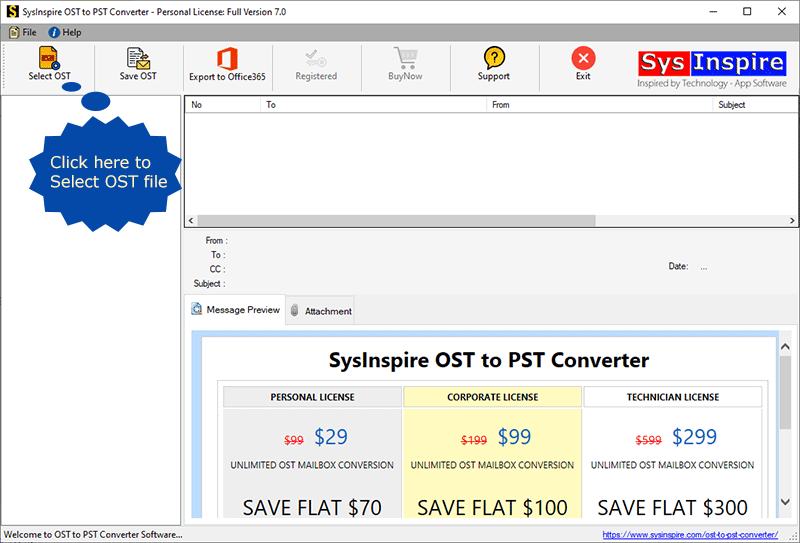
Now, click the “Select” or “Search OST database” button, select the OST file, and then click “Start Scanning”.

After scanning the OST files, the software will display a live preview of all OST components, from which you can select the required items.

Now, press the ‘Export to Office 365’ button on the toolbar.
Enter your Office 365 account login details and click “Convert”.
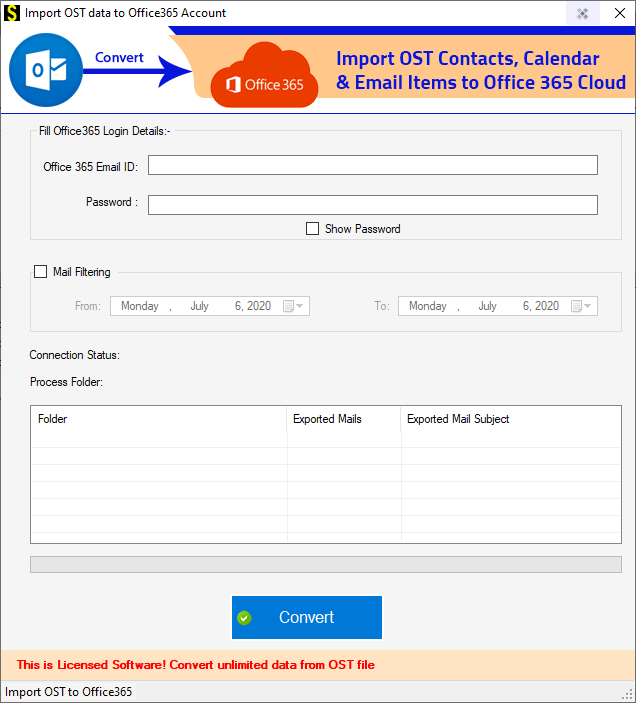
Simply start the export process; the software will display this message once the process is complete.

Frequently Asked Questions (FAQ)
Can I import an OST file directly into Outlook 365?
No. Outlook 365 does not provide a direct option to import standalone OST files. A professional OST migration tool is required.
Does the software migrate attachments safely?
Yes. All email attachments and important mailbox properties remain unchanged during migration.
Can I migrate multiple OST files?
Yes. The software supports both single and multiple OST file migration.
Can I preview OST emails before migration?
Yes. The preview feature allows users to check mailbox items before exporting them.
Does it support all Windows versions?
Yes. The software supports Windows 11, 10, 8.1, 8, 7, XP, Vista, and other editions.
Is a free demo version available?
Yes. Users can try the demo version to evaluate the migration process before purchasing the full version.
Conclusion
Importing OST files into Outlook 365 can be challenging because Microsoft does not provide a direct method for migrating standalone OST files. Manual methods are effective only in specific situations and can be difficult when dealing with large mailbox datasets or orphaned OST files. A professional solution like SysInspire OST to Outlook 365 Converter Software makes the migration process simple, secure, and efficient. It enables users to transfer emails, contacts, calendars, notes, tasks, and attachments while preserving the original mailbox structure. With the right migration approach, users can easily move their OST data to Outlook 365 and securely access their emails from anywhere.