Introduction
Microsoft Outlook stores mailbox data in PST files, while IBM HCL Notes uses the NSF file format to manage emails and other mailbox items. When users or organizations migrate from Outlook to HCL Notes, they need to convert their PST files into NSF format to access their existing mailbox data in the new environment. Since Outlook and HCL Notes use different file formats, you cannot open or import a PST file directly into an NSF database. A reliable conversion process is required to transfer emails, contacts, calendars, tasks, and other mailbox items while preserving the original data.
In this guide, you’ll learn what PST and NSF files are, why PST to NSF conversion is necessary, the challenges of manual migration, and the easiest way to convert Outlook PST files into NSF format without losing important mailbox information.
What is a PST file?
PST (Personal Storage Table) is a data file format developed by Microsoft Outlook for storing mailbox information locally on a computer.
A PST file can contain:
- Emails
- Contacts
- Calendars
- Tasks
- Notes
- Journal Entries
- Attachments
PST files are commonly used for creating mailbox backups, archiving old emails, and transferring Outlook data between different computers.
What is an NSF File?
NSF (Notes Storage Facility) is the primary database format used by HCL Notes (formerly IBM Lotus Notes). It stores mailbox data, including emails, contacts, calendars, tasks, and other collaborative information.
Unlike PST files, NSF databases are designed specifically for the HCL Notes environment and cannot be opened directly in Microsoft Outlook.
Why Import PST Files to NSF?
There are several situations where users need to convert Outlook PST files into NSF format, including:
- Migrate from Microsoft Outlook to HCL Notes.
- Access Outlook emails in an NSF environment.
- Move business mailbox data to IBM Notes.
- Preserve archived Outlook mailboxes.
- Transfer emails during organizational migration.
- Consolidate mailbox data into HCL Notes.
Advantages of PST to NSF Conversion
Converting PST files into NSF offers several benefits:
- Import Outlook mailbox data into HCL Notes.
- Preserve original email formatting.
- Maintain attachments without modification.
- Keep sender, recipient, subject, and timestamps intact.
- Retain folder hierarchy throughout the conversion.
- Transfer contacts, calendars, and other mailbox items.
- Ensure smooth migration with minimal data loss.
Is There Any Manual Method to Import PST to NSF?
There is no direct manual method available to import PST files into an NSF database. Since Microsoft Outlook and HCL Notes use different mailbox formats, users generally need multiple applications or complicated migration procedures.
Although some organizations use intermediate migration techniques, they are often time-consuming and require advanced technical knowledge.
Drawbacks of the Manual Approach
Manual migration has several limitations, including:
- No direct PST to NSF import option.
- Requires multiple applications.
- Time-consuming for large mailboxes.
- Risk of incomplete migration.
- Attachments may not migrate correctly.
- Folder hierarchy can change.
- Technical expertise is required.
- Not suitable for enterprise-level migration.
Professional Solution to Import PST Files to NSF
For users looking for a faster and more reliable solution, SysInspire PST to NSF Converter Software provides a simple way to convert Outlook PST files into NSF format.
The software supports both single and multiple PST files while maintaining the original mailbox structure, email properties, attachments, and metadata throughout the conversion process. Its user-friendly interface makes it suitable for home users, administrators, and IT professionals alike.
Key features of SysInspire PST to NSF Converter software
- Convert PST files directly into NSF format.
- Supports batch conversion of multiple PST files.
- Preserves email attachments during conversion.
- Maintains original folder hierarchy.
- Retains email headers and metadata.
- Preview mailbox items before conversion.
- Converts emails, contacts, calendars, tasks, and notes.
- Compatible with ANSI and Unicode PST files.
- Supports all modern Windows operating systems.
- Free trial version available for evaluation.
How to Import PST Files to NSF?
Step 1:Download and install the SysInspire PST to NSF Converter on your Windows computer.

Step 2: Launch the software and click Select PST to browse and add your Outlook PST file.

Step 3: After scanning is complete, preview the mailbox and select the folders you want to convert.
Step 4: Choose NSF as the output file format.
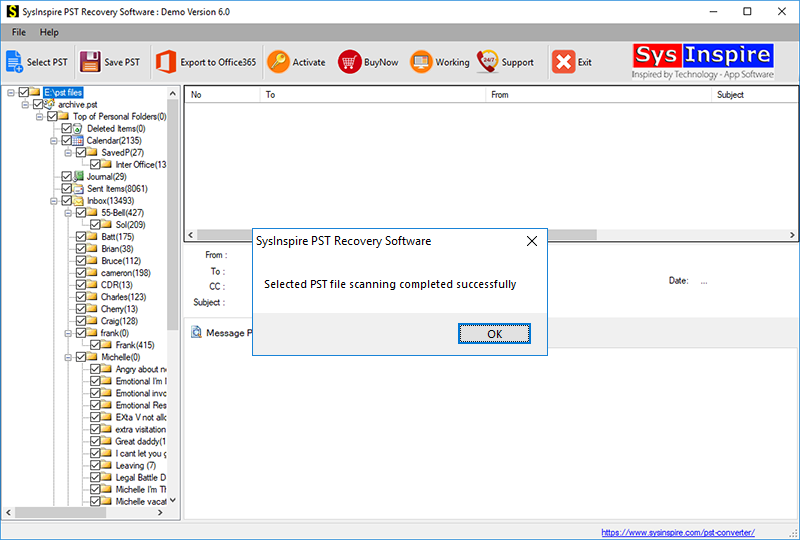
Step 5: Select the destination location, configure the required options, and click Convert to begin the conversion process.
After the process finishes, open HCL Notes and access your converted NSF file.
Conclusion
Converting PST files into NSF format is the most practical solution for users migrating from Microsoft Outlook to HCL Notes. Since both platforms use different mailbox formats, direct import is not possible, making a reliable conversion solution essential.
While manual methods are often complicated and time-consuming, a dedicated PST to NSF converter simplifies the entire migration process by preserving emails, attachments, folder hierarchy, and mailbox metadata.
If you’re looking for a secure and hassle-free way to import Outlook PST files into NSF format, using a professional conversion solution can help ensure an accurate and smooth migration experience.
FAQ – (Frequently Asked Questions)
Yes. The software supports batch conversion, allowing multiple PST files to be converted into NSF in a single process.
Yes. All email attachments are preserved along with their corresponding messages.
Yes. The software includes a preview feature that lets you review mailbox items before starting the conversion.
Yes. It can convert emails, contacts, calendars, tasks, notes, and other Outlook mailbox items.
No. The software can efficiently process both small and large PST files.
Yes. A free demo version is available so users can evaluate the software before purchasing the licensed edition.