Introduction
Are you searching for a reliable way to convert EML files into TXT format while keeping your email content safe and readable? Many users store their emails in EML format using email applications such as Mozilla Thunderbird, Windows Live Mail, Apple Mail, and Outlook Express. However, opening or sharing these emails in plain text format can sometimes be challenging.
In this guide, you’ll learn what an EML file is, why users convert EML files to TXT, the drawbacks of manual methods, and a professional solution that enables secure batch conversion while preserving email content and important information.
What is an EML file?
An EML file is a standard email file format used by various desktop email clients, including Mozilla Thunderbird, Windows Live Mail, Apple Mail, Outlook Express, and several others. Each EML file contains a complete email message along with all of its associated details.
An EML file stores:
- Email message
- Sender and recipient details
- Subject line
- Date and time information
- CC and BCC details
- Email headers
- HTML formatting
- embedded images
- file attachments
EML files are commonly used for email backup, archiving, sharing, and transferring messages between different email applications.
Benefits of Converting EML Files to TXT
Saving EML files in TXT format provides several advantages, including:
- Converts emails into a simple and universally readable format.
- Makes email content easy to access without an email client.
- Preserves important email information during conversion.
- Supports bulk conversion of multiple EML files.
- Simplifies email archiving and documentation.
- Allows easy searching, copying, and printing of email content.
- Reduces the complexity of managing large email collections.
Limitations of Manual Methods
Although manual techniques are available for extracting email content from EML files, they are practical only for a limited number of emails.
Some common drawbacks include:
- Time-consuming for multiple EML files.
- Requires opening every email individually.
- Attachments are not converted into TXT format.
- Increased chances of missing important email information.
- Not suitable for bulk email conversion.
- Inefficient for business or enterprise-level migration.
Professional Solution to Convert EML Files to TXT
If you need a fast, secure, and accurate method to convert EML files, SysInspire EML to TXT Converter offers a reliable solution. The software is designed to export EML emails into TXT format without affecting the original email content.
It converts emails while preserving sender and recipient information, subject, date, email body, internet headers, and other important properties. Whether you’re converting a few emails or thousands of EML files, the software ensures a smooth and error-free conversion process.
Key Features of SysInspire EML to TXT Converter
- Convert single EML files or complete folders.
- Supports batch conversion of multiple EML files.
- Preserves email content and important properties.
- Maintains sender, recipient, subject, date, CC, and BCC information.
- Built-in email preview before conversion.
- User-friendly interface suitable for both beginners and professionals.
- Export EML files to TXT as well as several other file formats.
- Supports migration to cloud email services like Office 365, Gmail, Yahoo Mail, and IMAP.
- Compatible with all major Windows operating systems.
- Free demo version available for evaluation.
How to Use SysInspire EML to TXT Converter?
Follow these simple steps to convert EML files into TXT format:
Step 1: Download and install SysInspire EML to TXT Converter on your Windows computer. Launch the software after installation.

Step 2: Click Add EML Files or Add EML Folder, then browse your computer and select the required EML files.

Step 3: Preview your emails and verify the mailbox data before starting the conversion process.
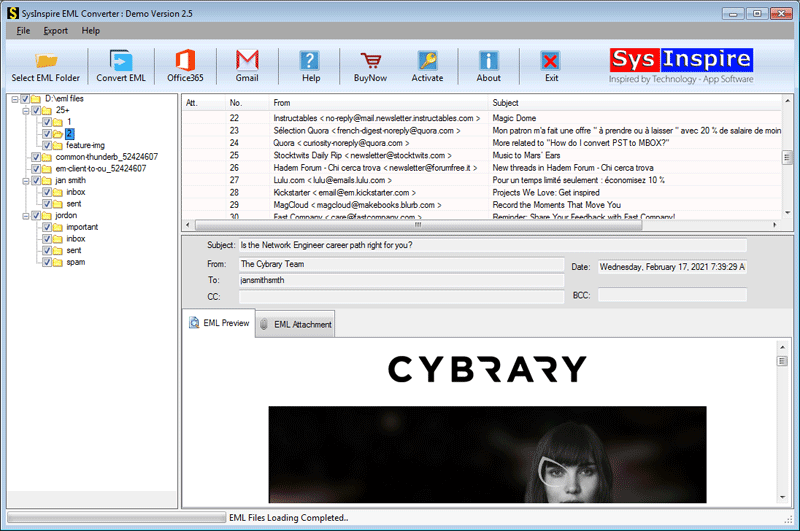
Step 4: Click Convert EML, choose TXT as the output format, select the destination folder, and begin the conversion.

Step 5: After the conversion is completed successfully, the software displays a confirmation message indicating that all selected EML files have been exported successfully.

Frequently Asked Questions (FAQs)
Can I convert multiple EML files into TXT format at the same time?
Yes. The software supports batch conversion, allowing you to convert multiple EML files into TXT format in a single operation.
Will the email information remain intact after conversion?
Yes. The software preserves important email details, including sender information, recipient addresses, subject, date, CC, BCC, email body, and internet headers throughout the conversion process.
Can I preview emails before converting them?
Yes. The built-in preview feature allows you to examine your emails before starting the conversion.
Which Windows versions are supported?
The software is fully compatible with Windows 11, Windows 10, Windows 8.1, Windows 8, Windows 7, Vista, XP, and other Windows editions.
Is there a free trial available?
Yes. The free demo version allows users to convert up to 25 emails from each folder, enabling them to evaluate the software before purchasing the licensed version.
Conclusion
Converting EML files to TXT format is an excellent way to access, archive, and manage email content in a simple text format. While manual methods may work for a small number of emails, they are not practical for large-scale conversions. A professional solution like SysInspire EML to TXT Converter simplifies the entire process by supporting batch conversion, preserving email information, maintaining data accuracy, and delivering quick results. Whether you’re converting personal email archives or business mailboxes, using a dedicated converter ensures a smooth, secure, and reliable conversion experience.