Introduction
Looking for an easy way to import PST files into an Office 365 mailbox? Many Outlook users keep their emails, contacts, calendars, and other mailbox items in PST files and later need to move them to Microsoft 365 for better accessibility and cloud storage. Since the migration process can be confusing, especially for large PST files, choosing the right approach is important. In this guide, you’ll learn what a PST file is, why users migrate PST data to Office 365, the challenges of manual methods, and a reliable way to complete the migration without affecting your mailbox data.
What is a PST file?
A PST (Personal Storage Table) file is a data file created by Microsoft Outlook to store mailbox information locally on a computer. It is commonly used with POP accounts, archived mailboxes, or exported Outlook data.
A PST file can store:
- Email messages
- Contacts
- calendar events
- Tasks
- Notes
- Journal entries
- Attachments
- Folder hierarchy
Because all mailbox information is stored in a single file, PST files are widely used for email backup, archiving, and transferring Outlook data between systems.
Why Import PST Files to Office 365?
Many users move PST files into Office 365 for different personal and business requirements, such as:
- Access Outlook emails from anywhere.
- Store mailbox data securely in the cloud.
- Upgrade from a local Outlook profile to Microsoft 365.
- Consolidate multiple PST files into one Office 365 account.
- Reduce dependency on locally stored mailbox files.
- Improve collaboration and mailbox accessibility across devices.
Benefits of PST to Office 365 Migration
Importing PST files into Office 365 provides several advantages:
- Access emails from any internet-connected device.
- Secure important mailbox data in Microsoft’s cloud.
- Preserve mailbox structure during migration.
- Easily manage emails, contacts, and calendars online.
- Eliminate the need to maintain large local PST files.
- Simplify mailbox management for personal and business users.
Limitations of Manual Methods
Although manual solutions are available, they come with several drawbacks:
- Multiple configuration steps are required.
- Time-consuming for large PST files.
- Requires technical knowledge.
- Greater possibility of upload or configuration errors.
- Not suitable for bulk mailbox migration.
- Managing multiple PST files becomes difficult.
Professional Solution to Import PST Files to Office 365
If you want a quicker and more convenient way to Upload/ Import PST to Office 365, the SysInspire PST to Office 365 Converter Software offers a simple solution. The software allows users to upload single as well as multiple PST files directly to Office 365 while maintaining mailbox integrity throughout the migration process.
Designed with a user-friendly interface, the software is suitable for both individual users and IT professionals who need a reliable Outlook-to-Office 365 migration solution.
Key Features of SysInspire PST to Office 365 Converter
- Import PST files directly into Office 365 mailboxes.
- Supports single as well as batch PST migration.
- Transfers emails, contacts, calendars, notes, tasks, and other Outlook items.
- Maintains folder hierarchy and email properties during migration.
- Preview mailbox data before starting the migration.
- Easy-to-use graphical interface for all users.
- Additional options to migrate PST files to Gmail and IMAP accounts.
- Compatible with Windows 11, 10, 8.1, 8, 7, Vista, XP, and earlier versions.
- Free demo version available for evaluation.
How to Use SysInspire PST to Office 365 Converter?
Step 1: Download and install the SysInspire PST to Office 365 Converter on your Windows computer.

Step 2: Launch the software and click the Select PST button to browse your Outlook PST file.

Step 3: Choose the required PST file and allow the software to scan it.
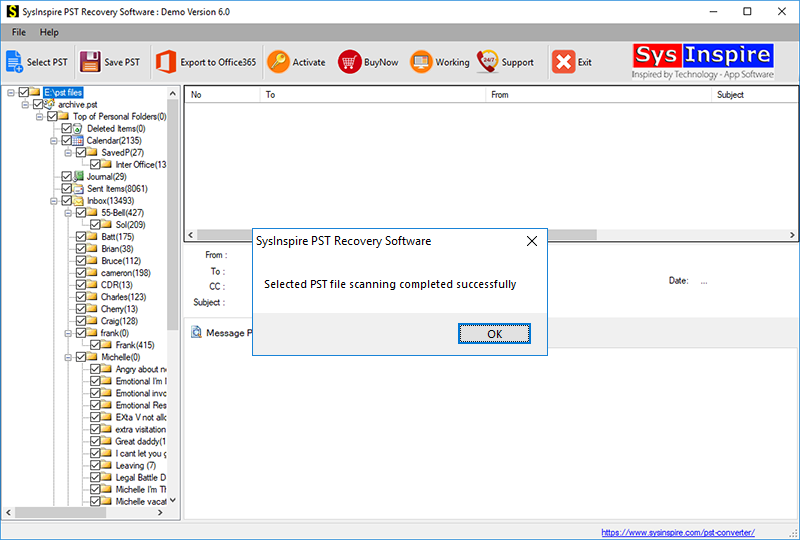
Step 4: Preview the mailbox folders and select the data you want to migrate.
Step 5: Choose Office 365 as the destination, enter your Office 365 login credentials, and click the Convert button to begin the migration.
After the migration is completed, all selected Outlook mailbox data will be available in your Office 365 account.
FAQ – Frequently Asked Questions
Can I import multiple PST files into Office 365 simultaneously?
Yes. The software supports batch migration, allowing you to upload multiple PST files in one operation.
Will my mailbox data remain unchanged after migration?
Yes. The software preserves emails, contacts, calendars, attachments, folder hierarchy, and other mailbox properties throughout the migration.
Can I preview PST data before importing it?
Yes. The built-in preview feature lets you review mailbox content before starting the migration.
What Outlook items can be migrated?
The software migrates emails, contacts, calendars, notes, tasks, journals, attachments, and other Outlook folders.
Does the software support large PST files?
Yes. It can efficiently process both small and large PST files without size-related issues.
Is a free trial available?
Yes. A free demo version is available that allows users to migrate up to 25 emails from a PST file to Office 365 for evaluation.
Conclusion
Upload/ Import PST to Office 365 is an effective way to move Outlook mailbox data from local storage to Microsoft’s secure cloud platform. While manual methods are available, they often involve multiple technical steps and can become difficult when handling large or multiple PST files. A dedicated PST to Office 365 migration tool simplifies the entire process by securely transferring mailbox data while preserving its original structure and properties. Whether you need to migrate a single PST file or multiple Outlook mailboxes, using a reliable converter can help complete the migration quickly and efficiently.