Introduction
Need to convert EML files into MSG format without losing your email data? Many users switch from email clients like Windows Live Mail, Thunderbird, or Apple Mail to Microsoft Outlook, where MSG is the preferred email format. Since Outlook doesn’t offer a direct option to convert EML files into MSG in bulk, the process can become challenging. In this guide, you’ll learn what an EML file is, why users convert EML to MSG, the limitations of manual methods, and an efficient way to perform the conversion while keeping your email content and attachments intact.
What is an EML file?
An EML file is an email message file format used by several desktop email applications to save individual emails. It stores the complete email along with its associated information, making it a common choice for email backup and sharing.
An EML file may contain:
- Email messages
- Attachments
- Sender and recipient details
- Subject line
- Date and time information
- HTML or plain text formatting
- Email headers
- embedded images
Because all email information is stored within a single file, EML files are commonly used for archiving and transferring email messages between supported email clients.
Why Convert EML Files to MSG?
There are several reasons why users prefer converting EML files into Outlook MSG format:
- Open EML emails directly in Microsoft Outlook.
- Migrate emails from different email clients to Outlook.
- Preserve email formatting and attachments.
- Organize Outlook emails more efficiently.
- Manage Outlook-compatible email archives.
- Simplify email migration for business and personal use.
Benefits of EML to MSG Conversion
Converting EML files into MSG format offers multiple advantages:
- Full compatibility with Microsoft Outlook.
- Maintains original email formatting.
- Preserves attachments and metadata.
- Keeps folder organization intact during conversion.
- Enables quick access to Outlook email messages.
- Makes email management easier for Outlook users.
Limitations of Manual Methods
Although manual approaches are available, they may not always be practical because:
- Multiple emails must often be converted individually.
- The process can take a significant amount of time.
- Technical knowledge may be required.
- Email formatting can sometimes be affected.
- Handling large numbers of EML files becomes difficult.
- Attachments or metadata may not always transfer correctly.
Professional Solution to Convert EML to MSG
For users looking for a faster and more convenient solution, the SysInspire EML to MSG Converter Software provides a reliable way to Convert EML to MSG with Attachments format. The software supports both individual and batch conversion while preserving the original email content, attachments, and folder structure.
Its simple interface makes it suitable for home users as well as IT professionals who need an efficient email conversion solution.
Key Features of SysInspire EML to MSG Converter
- Convert single as well as multiple EML files into MSG format.
- Supports both Select EML File and Select EML Folder options.
- Preserves attachments, email formatting, and metadata.
- Maintains the original folder hierarchy.
- Preview email content before starting the conversion.
- Easy-to-use graphical interface suitable for all users.
- Supports exporting EML files to Office 365 and other formats.
- Compatible with Windows 11, 10, 8.1, 8, 7, Vista, XP, and earlier versions.
- Free demo version available for evaluation.
How to Use SysInspire EML to MSG Converter?
Step 1: Download and install the SysInspire EML to MSG Converter on your Windows computer.
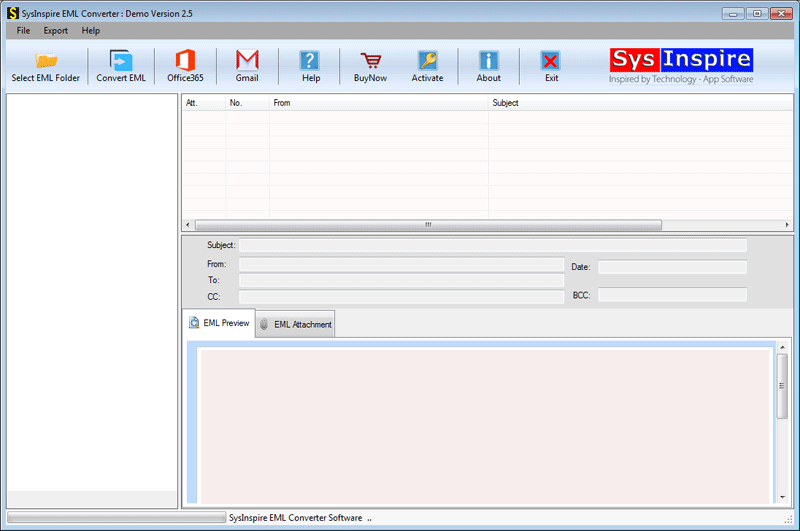
Step 2: Launch the software and click Select EML File or Select EML Folder to browse your email files.

Step 3: Allow the software to scan the selected EML files.
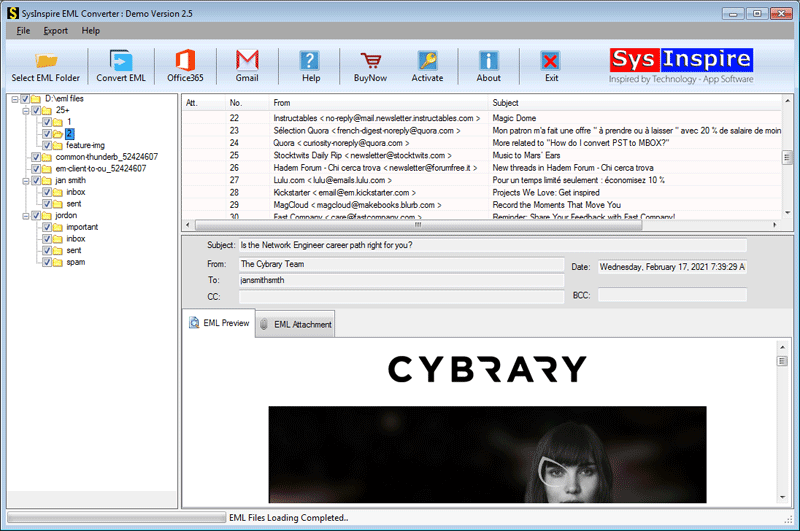
Step 4: Preview the mailbox data and select the email messages you want to convert.
Step 5: Choose MSG as the output format, specify the destination folder, and click the Convert button to begin the conversion.

After the process finishes, all selected EML emails will be successfully saved as Outlook MSG files with their attachments and original formatting preserved.
FAQ – Frequently Asked Questions
Can I convert multiple EML files into MSG format at once?
Yes. The software supports batch conversion, allowing you to convert multiple EML files simultaneously.
Will attachments remain intact after conversion?
Yes. The software preserves attachments, email formatting, metadata, and other email properties throughout the conversion process.
Can I preview emails before converting them?
Yes. A built-in preview feature allows you to review email content before starting the conversion.
Can this software export EML files to Office 365?
Yes. Besides MSG conversion, the software also supports exporting EML files directly to Office 365.
Does the software support large EML files?
Yes. It efficiently processes both small and large EML files without affecting data integrity.
Is a free trial version available?
Yes. A free demo version is available that allows users to convert up to 25 emails from EML files for evaluation.
Conclusion
Convert EML to MSG with Attachments is an effective solution for users who want to access their emails in Microsoft Outlook without losing important information. While manual methods can be suitable for a few files, they often become time-consuming and difficult when dealing with large numbers of emails. A dedicated EML to MSG conversion tool simplifies the entire process by preserving email content, attachments, formatting, and folder structure. Whether you need to convert a single EML file or multiple email folders, using a reliable converter can help complete the task quickly, accurately, and efficiently.