Introduction
Many people keep backup copies of their emails in MBOX files after using desktop email applications. When they switch to a cloud-based email service such as Gmail, Outlook, Yahoo Mail, Zoho Mail, or another IMAP-supported platform, they often want to move those saved messages into their new account. This cannot be done by simply uploading the MBOX file because IMAP works with mail stored on an online server rather than offline mailbox archives. To transfer the emails successfully, you need a migration process that imports the MBOX data and synchronizes it with the IMAP account.
In this guide, you’ll learn why MBOX to IMAP migration is necessary, the challenges involved, and the easiest method to upload MBOX emails to an IMAP account without losing important mailbox data.
What is an MBOX file?
MBOX is one of the most widely used mailbox file formats for storing email messages. Instead of saving every email separately, it stores multiple emails in a single database file, making mailbox management easier.
Several popular email applications create or support MBOX files, including:
Mozilla Thunderbird, Apple Mail, eudora, SeaMonkey, Opera Mail, Entourage
Although MBOX files are supported by many desktop email clients, they cannot be imported directly into an IMAP account without using a migration solution.
What is an IMAP Server?
IMAP (Internet Message Access Protocol) is an email protocol that stores your mailbox on a mail server instead of your local computer. It allows users to access the same emails from multiple devices while keeping everything synchronized in real time.
Most modern email services support IMAP, including Gmail, Outlook.com, Yahoo Mail, Zoho Mail, AOL Mail, and many business email servers.
Why Upload MBOX Files to an IMAP Account?
There are many situations where users need to migrate MBOX files to an IMAP server, such as:
- Import archived emails into Gmail or Outlook.
- Move Thunderbird emails to a cloud-based mailbox.
- Access old emails from multiple devices.
- Create an online backup of important email data.
- Transfer emails from one email client to another.
- Simplify mailbox management using an IMAP-enabled account.
Advantages of MBOX to IMAP Migration
Uploading MBOX files to an IMAP server offers several benefits:
- Access emails from anywhere with an internet connection.
- Synchronize mailbox data across multiple devices.
- Preserve original email formatting.
- Maintain attachments with every email.
- Keep sender, recipient, subject, and timestamp information intact.
- Eliminate the need to manage offline mailbox files.
- Store emails safely on the mail server.
Is There Any Manual Method to Upload MBOX to IMAP?
There is no direct manual option available to upload MBOX files to an IMAP account. In most cases, users have to configure an email client, import the MBOX mailbox, connect an IMAP account, and manually move emails between folders.
While this approach may work for a small mailbox, it can become time-consuming and difficult when dealing with large MBOX files or multiple mailboxes.
Drawbacks of the Manual Approach
Manual migration comes with several limitations, including:
- No direct MBOX to IMAP upload feature.
- Multiple applications may be required.
- Time-consuming for large mailboxes.
- Risk of incomplete email migration.
- Attachments may not transfer properly.
- Folder organization can change during migration.
- Requires technical knowledge.
- Not suitable for business-level email migration.
Professional Solution to Upload MBOX Files to an IMAP Server
For users looking for a quicker and more convenient solution, SysInspire MBOX to IMAP Migration Tool provides a simple way to transfer MBOX emails directly to an IMAP-enabled account.
The software allows users to upload single as well as multiple MBOX files while preserving email properties, attachments, metadata, and folder hierarchy throughout the migration process. Its intuitive interface makes it suitable for both individual users and IT professionals.
Key features of SysInspire MBOX to IMAP Converter software
- Upload MBOX files directly to IMAP accounts.
- Support batch migration of multiple MBOX files.
- Preserve email attachments during upload.
- Maintain original folder hierarchy.
- Keep email headers and metadata unchanged.
- Preview mailbox items before migration.
- Compatible with MBOX files created by major email clients.
- Simple and easy-to-use interface.
- Supports all modern Windows operating systems.
- Free trial version available for evaluation.
How to Upload MBOX Files to an IMAP Account?
Step 1: Download and install the SysInspire MBOX to IMAP Migration Tool on your Windows computer.
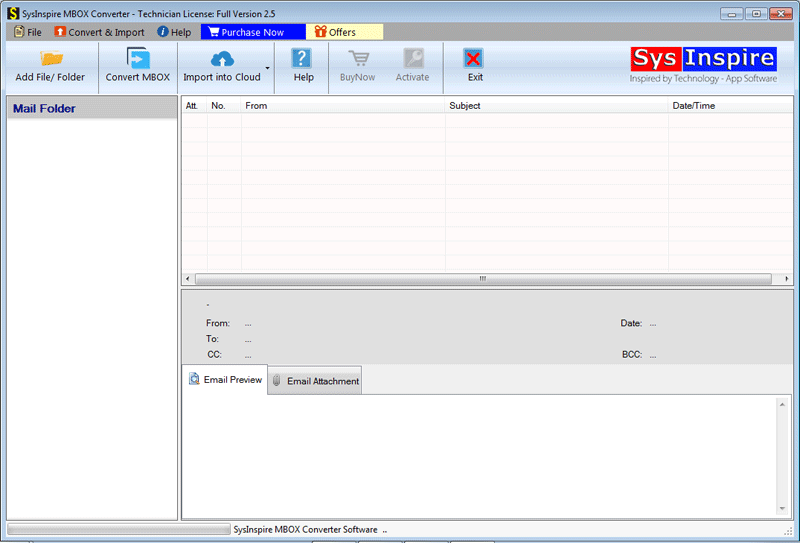
Step 2: Launch the software and click Add Folder to browse and select your MBOX file.

Step 3: After scanning is complete, preview the mailbox and choose the folders you want to upload.
Step 4: Click the Convert button and select IMAP as the destination.

Step 5: Enter your IMAP account credentials, choose the destination folder if required, and start the migration process.
Once the process is complete, log in to your email account to verify that all emails have been uploaded successfully.
FAQ – (Frequently Asked Questions)
Can I upload multiple MBOX files at the same time?
Yes. The software supports batch migration, allowing multiple MBOX files to be uploaded in a single operation.
Will my email attachments remain intact?
Yes. All attachments are transferred along with their corresponding emails.
Can I preview my mailbox before uploading?
Yes. The software provides a preview feature so you can review mailbox items before starting the migration.
Which IMAP email services are supported?
The software works with most IMAP-enabled email providers, including Gmail, Outlook, Yahoo Mail, AOL Mail, Zoho Mail, and many business mail servers.
Is there any file size limitation?
No. The software is capable of handling both small and large MBOX files efficiently.
Is a free trial available?
Yes. A free trial version is available so users can evaluate the software before purchasing the licensed edition.
Conclusion
Migrating MBOX files to an IMAP server is an effective way to access your emails from anywhere while keeping your mailbox synchronized across multiple devices. Although manual migration can be complicated and time-consuming, a dedicated migration tool makes the entire process much simpler by securely transferring emails, attachments, and mailbox folders without affecting the original data.
If you’re looking for a hassle-free way to upload MBOX files to an IMAP account, using a reliable migration solution can help ensure a smooth and accurate email transfer experience.