Introduction
Are you looking for a reliable way to import Outlook PST contacts into vCard format? Many users need to transfer their Outlook contacts to smartphones, cloud services, or other email applications that support VCF (vCard) files. However, manually exporting contacts from large PST files can be time-consuming and may lead to incomplete contact information or formatting issues.
In this guide, you’ll learn what a PST file is, why users convert PST to vCard, the drawbacks of manual methods, and an efficient solution to perform bulk conversion while preserving complete contact details.
What is a PST file?
A PST (Personal Storage Table) file is the default data file used by Microsoft Outlook to store mailbox information locally on a computer. It allows users to save and manage Outlook data even without an active internet connection or Exchange Server.
A PST file can contain:
- Email messages
- Contacts
- calendar entries
- Tasks and notes
- Journals
- Attachments
- Distribution lists
- Other Outlook mailbox data
Since PST files store complete Outlook mailbox information, they are widely used for data backup, migration, and archiving.
Why Convert PST to vCard?
There are several reasons why users need to convert PST contacts into vCard format:
- Import Outlook contacts into Android and iPhone devices.
- Transfer contacts to Gmail, iCloud, or other email services.
- Share individual contacts in a universally accepted format.
- Create contact backups for future use.
- Migrate Outlook contacts to applications that support VCF files.
- Manage contacts more efficiently across multiple platforms.
Benefits of PST to vCard Conversion
Converting PST contacts to vCard offers several advantages:
- Supports bulk contact conversion.
- Preserves complete contact information.
- Maintains contact photos, phone numbers, and email addresses.
- Retains company details, job titles, and addresses.
- Creates standard VCF files compatible with multiple devices and applications.
- Simplifies contact migration between different platforms.
Limitations of Manual Methods
Although Outlook provides an option to export contacts, manual conversion is not always practical, especially when working with large PST files.
Some common limitations include:
- Time-consuming for large contact databases.
- No efficient batch conversion for multiple PST files.
- Risk of incomplete contact information.
- Contact images and custom fields may not be preserved.
- Higher chances of manual errors.
- Requires Microsoft Outlook installation.
Professional Solution to Import PST to vCard in Bulk
If you’re looking for a simple and reliable solution, SysInspire PST to vCard Converter Software offers an efficient way to Import/Upload PST to Vcard format without complicated manual procedures. The software supports both single and bulk PST conversion while preserving all contact information, including names, phone numbers, email addresses, company details, contact photos, and other properties.
Its easy-to-use interface makes the software suitable for both home users and IT professionals.
Key Features of SysInspire PST to vCard Converter
- Convert single as well as multiple PST files.
- Batch conversion for faster processing.
- Preserves all contact fields and properties.
- Maintains contact photos and complete details.
- Built-in preview before conversion.
- User-friendly interface for all types of users.
- Supports ANSI and Unicode PST files.
- Compatible with Outlook-created PST files of all versions.
- Works with Windows 11, 10, 8.1, 8, 7, Vista, XP, and earlier versions.
- Free demo version available for evaluation.
How to Use SysInspire PST Converter Tool?
Step 1: Download the SysInspire PST Converter tool from the official website and install it on your Windows computer. After successful installation, launch the application.
Step 2: Open the software interface and click on the “Select PST” button available in the toolbar or under the File menu.

Step 3: Now click on the “Select PST File” option and browse your system to choose the required Outlook PST file.

Step 4: Once the PST file is added, the software will automatically scan and repair the file. After scanning, you can preview the mailbox data and proceed with the conversion process.
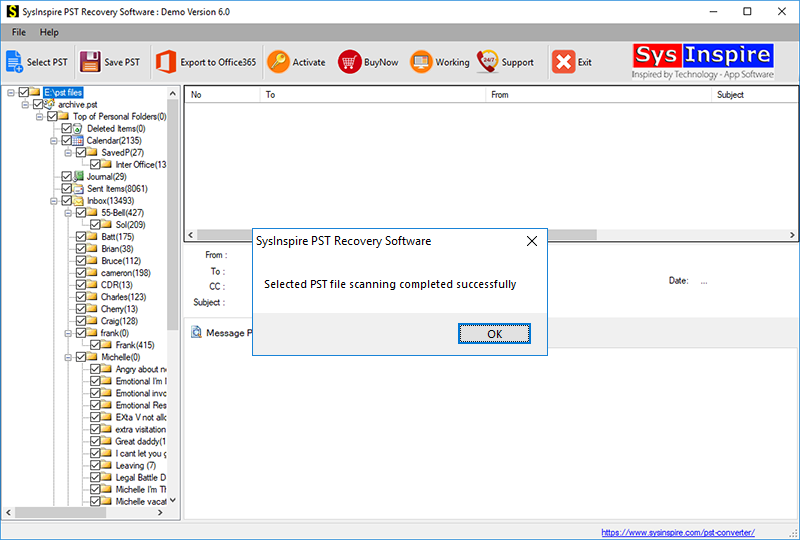
Step 5: After successful scanning, select the required data and choose vCard (VCF) as the output format. Finally, select the destination path and start the conversion process. Once completed, your Outlook contacts will be saved in vCard format with all details preserved.
FAQ – Frequently Asked Questions
Can I convert multiple PST contacts to vCard at once?
Yes. The software supports batch conversion, allowing you to convert multiple Outlook contacts in a single process.
Will all contact details be preserved after conversion?
Yes. The software maintains names, phone numbers, email addresses, company information, addresses, contact photos, and other contact properties.
Can I preview contacts before conversion?
Yes. A built-in preview feature allows you to review contacts before starting the conversion.
Which Windows versions are supported?
The software is compatible with Windows 11, Windows 10, Windows 8.1, Windows 8, Windows 7, Vista, XP, and earlier versions.
Is a free trial available?
Yes. A free demo version is available that allows users to convert up to 25 contacts for evaluation before purchasing the full version.
Conclusion
Import/Upload PST to Vcard is one of the easiest ways to transfer contact information to smartphones, email services, and other VCF-supported applications. While manual methods may work for a small number of contacts, they become inefficient when handling large PST files. A professional PST to vCard converter simplifies the entire process by preserving complete contact details, maintaining data integrity, and supporting bulk conversion. Whether you need to convert a few contacts or an entire Outlook address book, using a dedicated conversion tool ensures a fast, accurate, and hassle-free migration.