Posted by sysinspire
Posted on: June 5, 2026
Categories: MBOX to PST, Thunderbird Emails into Outlook
Reading Time: 3 minutes
Are you also wondering how to switch from Thunderbird to Outlook? Well, now anyone can easily convert their Thunderbird MBOX files to Outlook—and do so in very little time. In this blog, we will introduce you to the software that makes this possible and explain how to use it.
What’s in an MBOX file?
An MBOX file is an email format created in Thunderbird. It facilitates the transfer of emails. MBOX files contain various email folders—such as contacts, calendars, and others—where all emails are stored securely, eliminating the risk of data loss.
How to Convert Thunderbird to Outlook?
Yes, any user can now convert data from Thunderbird to Outlook using the SysInspire MBOX Converter tool—and do so in just a few simple steps. Moreover, using this software involves no risk whatsoever. It is also available at a very affordable price, making it easy for anyone to purchase. Additionally, users can download the software and try out the free demo at no cost.
Amazing features to Convert Thunderbird to Outlook using SysInspire MBOX Converter Tool-
- This software is designed for both technical and non-technical users and is easy for anyone to operate.
- It is available in multiple languages, making it suitable for both English and non-English speakers.
- There is no risk involved in using it, as the software has been thoroughly tested by humans.
- You can use it to convert your MBOX files to Outlook PST format in just a few simple steps.
- The software supports the conversion of various file formats, including PST, EML, MSG, EMLX, HTML, and NSF.
- With the SysInspire MBOX Converter tool, you can convert data directly to cloud services like Gmail, Yahoo Mail, and Office 365.
- It comes with a 30-day money-back guarantee, ensuring you can get a refund within 30 days if the software fails to meet your needs for any reason.
- The software is compatible with all Windows operating systems, including Windows 11, 10, 8.1, 8, 7, XP, Vista, and other versions.
How to use SysInspire MBOX Converter Tool?
First of all, start by downloading the MBOX converter tool.
Go to ‘Add File’ on the home screen > Select the MBOX file and press ‘Next’.
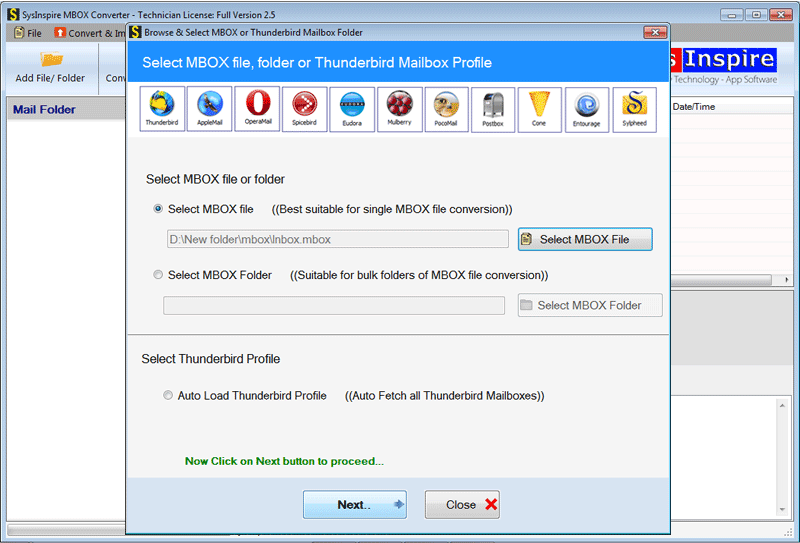
Once the file scanning is complete, all mailbox folders will appear on the screen.

You can specifically select folders by choosing the necessary ones and clicking on ‘convert MBOX’.
Under conversion, select PST to start converting MBOX data to PST format.

You have successfully completed the task of importing MBOX data into PST, but there is still one more step. This is because you need to import this new PST file—which contains all the data from the MBOX file—into Outlook.
Free demo version
You can also try the free demo of the SysInspire MBOX Converter tool by downloading the software from the provided link. It is completely free, and there is no cost involved in using it. With the free demo, you can convert 25 emails from MBOX to Outlook PST; the tool first scans the MBOX file and then proceeds with the conversion process. Anyone can use this free demo.
Conclusion
If you want to convert MBOX to Outlook PST, try the SysInspire MBOX Converter Tool. It comes with several excellent features and resolves various user issues. This blog also explains how you can use this software to convert your MBOX file to Outlook PST quickly.